Top 5 AI-Powered Personal Assistant Apps for 2025

Top 5 AI-Powered Personal Assistant Apps for 2025 are transforming how we work, manage our schedules, and stay organized. I’ve spent years helping people integrate AI into their daily routines, and I can tell you firsthand: the right assistant app doesn’t just save time—it fundamentally changes how you approach your day. Whether you’re drowning in emails, struggling to remember appointments, or simply investigating how to work smarter, these AI-powered personal assistant apps can become your most valuable productivity partner.
In this guide, I’ll walk you through the five best options available right now, breaking down their features, pricing, and real-world applications so you can choose the perfect fit for your needs. You don’t need to possess any technical knowledge; all you need is a willingness to delegate your busywork to AI, allowing you to concentrate on more important tasks.
Why You Need an AI Personal Assistant App in 2025
Let me be direct: if you’re still managing your entire life manually, you’re working too hard. I see it every day—talented, driven people spending hours on tasks that AI personal assistants can handle in seconds. The technology has matured to the point where these apps aren’t just novelties; they’re essential productivity tools.
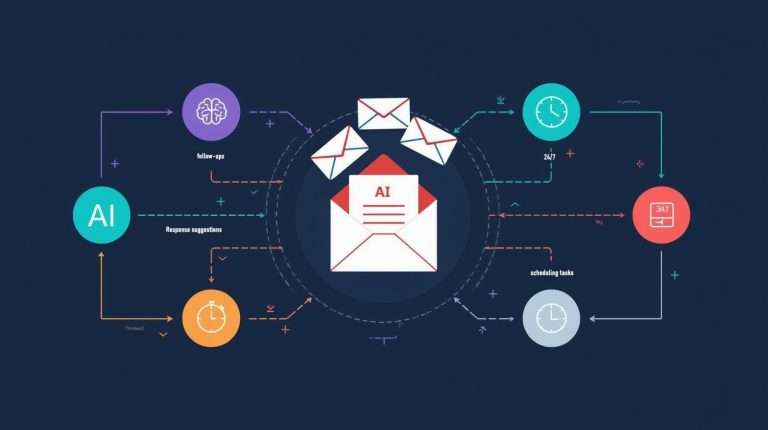
Modern AI assistant applications use natural language processing and machine learning to understand your preferences, anticipate your needs, and automate routine tasks. They schedule meetings, draft emails, set reminders, manage your calendar, and even provide intelligent suggestions based on your habits. What’s the best part? They get better the more you use them, learning your patterns and adapting to your workflow.
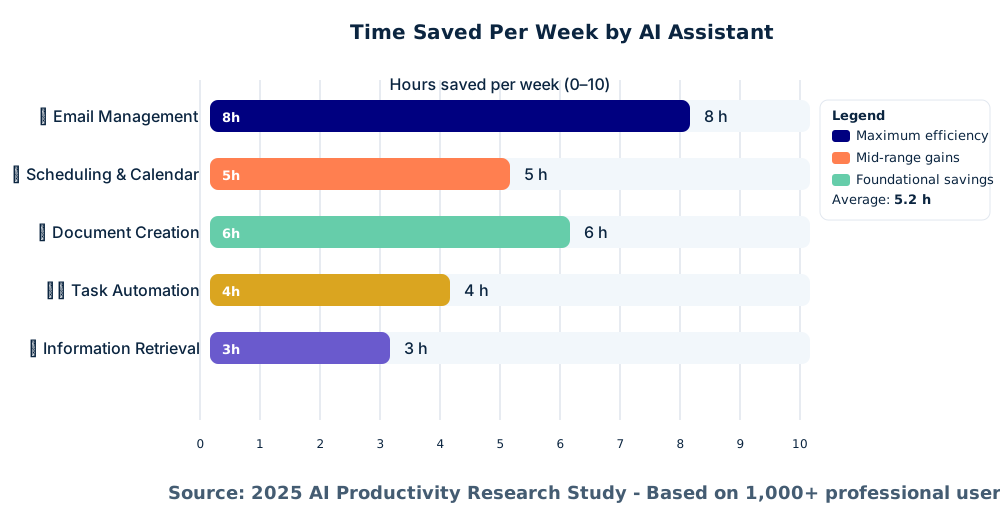
Think about it: how much time do you spend each week on scheduling alone? Or searching through emails for that one important attachment? The top AI personal assistant apps eliminate this friction, giving you back hours every week to focus on meaningful work. And in 2025, with competition heating up, we’re seeing features and pricing that make these tools accessible to everyone—not just tech enthusiasts or corporate teams.
Quick Comparison: Top 5 AI Personal Assistants at a Glance
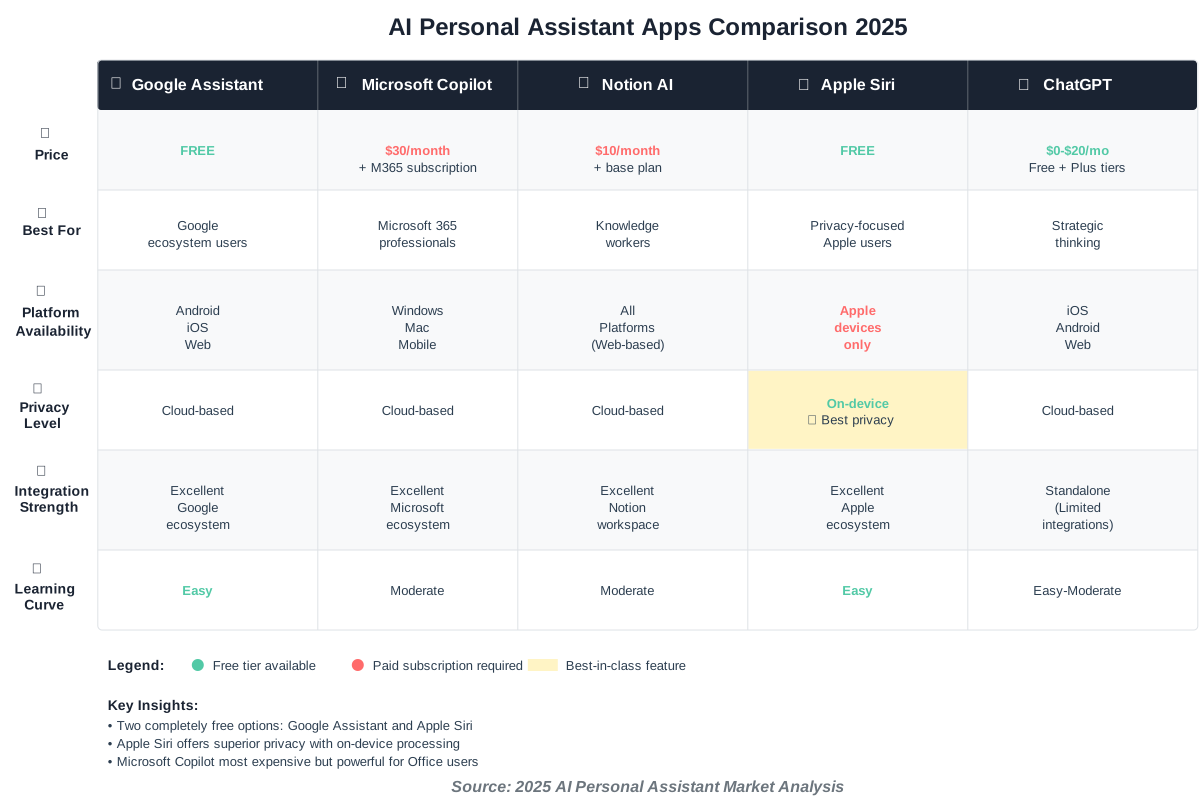
Before diving into detailed reviews, here’s a quick reference table to help you compare the essential features:
1. Google Assistant: The Comprehensive Ecosystem Champion
Google Assistant remains one of the most powerful and versatile AI-powered personal assistant apps available, and for good reason. It’s deeply integrated with the Google ecosystem, making it ideal if you already use Gmail, Google Calendar, Google Drive, or other Google services.
What Makes Google Assistant Stand Out
I recommend Google Assistant to clients who want seamless integration without learning a new system. It works across Android and iOS devices, smart home products, and even cars with Android Auto. The voice recognition is exceptional—I’ve watched it accurately transcribe complex technical terms and understand context from previous conversations.
The app excels at managing your daily schedule. Say “Hey Google, what’s on my calendar today?” and you’ll get a complete rundown of your appointments. Need to reschedule a meeting? Just tell it at the new time. Want to add a reminder while you’re driving? It handles that too, all hands-free.
Practical Use Cases
Here’s where Google Assistant truly shines in daily life:
- Morning routine automation: I’ve set mine to give me weather updates, traffic conditions, and my first three calendar items when I say “Good morning”
- Smart home control: Adjusting lights, thermostats, and security systems with voice commands integrates perfectly with your schedule
- Quick information retrieval: Need a conversion, definition, or fact? It’s faster than typing into a search bar
- Email and message dictation: Compose messages while cooking, exercising, or commuting
Real Limitations to Consider
Being honest about Google Assistant’s drawbacks helps you make informed decisions. The assistant occasionally misunderstands context, especially with complex multi-step requests. If you’re outside the Google ecosystem, many features lose their power—it integrates poorly with Microsoft or Apple productivity tools.
Privacy-conscious users should know that Google Assistant relies heavily on cloud processing and data collection. While Google has improved privacy controls, your voice queries and usage patterns feed into Google’s broader data ecosystem. There’s also the frustration of occasional unwanted activations when it mishears conversations as wake words.
The assistant sometimes pushes Google services even when alternatives might be better. Ask for navigation, and it defaults to Google Maps. Request music, and it suggests YouTube Music. This option works great if you’re all-in on Google but feels limiting otherwise.
Tips for Beginners
Start simple. Don’t try to automate everything on day one. Begin with basic commands like setting timers and alarms. Once you’re comfortable, gradually add calendar management, then reminders, then smart home controls.
Enable “Continued Conversation” in settings—it lets you ask follow-up questions without repeating “Hey Google” every time. This makes interactions feel natural and saves time.
Link your preferred music service, set your home and work addresses, and teach it to recognize your voice for personalized responses. These small setup steps multiply your efficiency gains.
Pricing and Availability
Google Assistant is completely free, which makes it an obvious starting point for anyone new to AI personal assistants. You’ll need a Google account, but that’s it. Premium features come through specific services (like YouTube Premium or Google One), but the core assistant functionality costs nothing.
2. Microsoft Copilot: The Workplace Productivity Powerhouse
If you spend most of your day in Microsoft 365 applications, Microsoft Copilot is transforming how professionals work. I’ve seen entire teams cut their administrative time in half after implementing it properly.
What Makes Microsoft Copilot Stand Out
Copilot isn’t just another chatbot—it’s deeply embedded in Word, Excel, PowerPoint, Outlook, and Teams. This integration means it understands your documents, emails, and meeting context in ways standalone assistants can’t match.
The real magic happens when you’re drafting documents or analyzing data. In Word, you can ask Copilot to summarize a 50-page report into three key points. In Excel, it can identify trends in your data and create visualizations automatically. In Outlook, it drafts email responses based on your communication style and the conversation thread.
I particularly appreciate how it handles meeting preparation. Before a Teams call, Copilot can summarize recent emails and documents shared with participants, giving you instant context. After the meeting, it generates action items and summaries automatically.
Practical Use Cases
Here’s how I use Microsoft Copilot daily, and how I recommend others do the same:
- Email management: Process your inbox faster by having Copilot summarize long email threads and draft replies
- Report creation: Transform raw data and notes into polished presentations or documents in minutes
- Meeting efficiency: Get pre-meeting briefs and post-meeting summaries without lifting a finger
- Data analysis: Ask questions about your spreadsheet data in plain English and get instant insights
Real Limitations to Consider
The biggest barrier to Microsoft Copilot adoption is cost. At $30 per user per month on top of your Microsoft 365 subscription, it’s expensive for individuals and small businesses. This pricing puts it out of reach for many who could benefit from it.
Copilot requires a robust Microsoft 365 infrastructure to work properly. If your organization uses a mix of tools—Google Docs here, Notion there, Slack for communication—Copilot’s value diminishes significantly. It’s built for the Microsoft ecosystem and doesn’t play well outside it.
The AI occasionally generates confidently wrong information, especially when analyzing complex data. I’ve seen it misinterpret spreadsheet formulas or suggest document changes that don’t align with the actual content. Always review its work critically rather than accepting outputs blindly.
There’s also a learning curve with prompting. Generic requests produce generic results. You need to learn how to phrase questions specifically to get valuable outputs, which takes practice and patience.
Tips for Beginners
Start with email summarization—it’s the quickest win. When you open a long thread, click the Copilot button and ask it to “summarize this conversation.” You’ll immediately see the value.
Don’t expect perfection. Copilot is a drafting tool, not a replacement for your judgment. Review its outputs, make adjustments, and provide feedback. Over time, it learns your preferences.
Use specific prompts. Instead of “make this better,” try “rewrite this email in a friendlier tone while keeping it professional.” The more specific you are, the better the results.
Pricing and Availability
Microsoft Copilot for Microsoft 365 costs $30 per user per month, and you’ll need a Microsoft 365 Business Standard or Business Premium subscription (around $12.50-$22 per user per month). There’s also a free version with limited features available through Bing and Edge browsers.
For professionals who live in Microsoft applications, the paid version pays for itself quickly through time savings. If you’re unsure, try the free version first to get a feel for the capabilities.
3. Notion AI: The Knowledge Management Game-Changer
Notion AI takes a different approach to the personal assistant concept by focusing on knowledge work and content creation. If you’re a writer, researcher, project manager, or anyone who works with information, this tool is a productivity revelation.
What Makes Notion AI Stand Out
Notion was already the Swiss Army knife of productivity apps—combining notes, databases, wikis, and project management. Adding AI capabilities transformed it into something even more powerful. Now it doesn’t just store your information; it helps you think through problems, generate ideas, and create content.
The AI understands the context of your entire Notion workspace. When you ask it to summarize project notes, it pulls from all relevant pages. When you request a project timeline, it can reference your existing databases and documents.
I use it constantly for brainstorming sessions. Type a rough idea, ask Notion AI to expand it, and suddenly you have a framework to work from. Need to draft a proposal? It can create an outline based on similar projects in your workspace.
Practical Use Cases
Here’s where Notion AI delivers exceptional value:
- Content creation: Draft blog posts, proposals, or documentation with AI assistance that understands your style
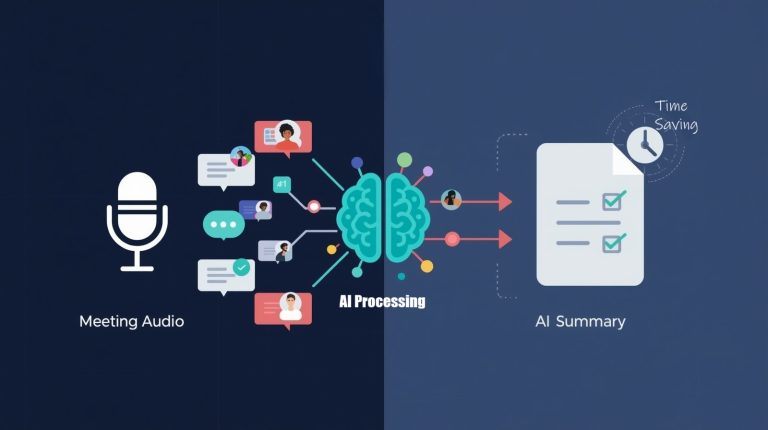
- Meeting notes automation: Record meeting highlights and have AI generate action items and summaries
- Research organization: Compile information from multiple sources and create coherent summaries
- Project planning: Transform rough ideas into structured project plans with timelines and milestones
Tips for Beginners
If you’re new to Notion, start with a simple workspace—maybe a personal journal or project tracker. Get comfortable with the basic structure before layering in AI features.
Use AI for first drafts only. Let it get you 70% of the way there, then apply your expertise for the final 30%. This workflow is faster than starting from scratch and produces better results than accepting AI output uncritically.
Create templates with AI assistance built in. For example, make a meeting notes template that automatically includes an AI summary section. This standardizes your workflow and ensures consistent results.
Real Limitations to Consider
Notion AI works brilliantly if you’re already a Notion user, but if you’re not, there’s a steep learning curve. The unique organizational philosophy of Notion itself may not resonate with everyone. You’ll need to invest time understanding databases, relations, and page structures before the AI features deliver full value.
The AI add-on costs $10 per month on top of Notion’s pricing, which can add up for teams. While individuals get Notion for free, most professionals need paid features, making the total investment $20+ monthly.
Notion AI sometimes generates generic content that lacks the depth you’d get from dedicated writing tools. It’s excellent for first drafts and brainstorming but shouldn’t be your only content creation tool. The outputs need significant human refinement for anything customer-facing or high-stakes.
The platform is cloud-only with no robust offline mode. If you work frequently without internet access, Notion AI won’t be there when you need it. This is particularly frustrating during travel or in areas with unreliable connectivity.
Pricing and Availability
Notion AI is an add-on to the regular Notion subscription. The basic Notion plan is free for individuals, with paid plans starting at $10 per month. Notion AI costs an additional $10 per user per month.
For knowledge workers, this investment makes sense. The time saved on content creation and research organization typically justifies the cost within the first week of use.
4. Apple Siri: The Privacy-Focused Personal Companion
Apple Siri has evolved significantly, and while it might not have all the bells and whistles of some competitors, it offers something increasingly valuable: privacy-first AI assistance without sacrificing core functionality.
What Makes Siri Stand Out
If you’re in the Apple ecosystem, Siri’s integration is unmatched. It works seamlessly across iPhone, iPad, Mac, Apple Watch, HomePod, and even CarPlay. More importantly, Apple’s on-device processing means many of your requests never leave your device—a crucial privacy advantage.
I recommend Siri to clients who prioritize data security. Unlike cloud-dependent assistants, much of Siri’s intelligence runs locally. Your voice requests, personal information, and usage patterns stay on your device, encrypted and protected.
The Shortcuts app transforms Siri from a simple assistant into a powerful automation tool. You can create custom voice commands that trigger complex workflows—things like “Start my workday” that open specific apps, set your status, and play your focus playlist.
Practical Use Cases
Here’s how Siri integrates into daily routines effectively:
- Apple ecosystem automation: Control your entire digital environment with voice commands across all devices
- Privacy-conscious assistance: Get help without sharing your data with third parties
- Health and fitness tracking: Integrate with Apple Health for workout logging and wellness reminders
- Custom shortcuts: Create personalized automation for repetitive tasks specific to your workflow
Real Limitations to Consider
Siri’s intelligence lags behind competitors, particularly with complex queries or contextual understanding. Ask Google Assistant or ChatGPT a nuanced question, and you’ll get sophisticated responses. Ask Siri the same thing, and you’ll often get a web search suggestion instead of a direct answer.
The assistant is locked to Apple’s ecosystem. If you use Windows for work, Android tablets, or collaborate with non-Apple users, Siri’s value diminishes significantly. You can’t access it from most devices your colleagues use, creating collaboration friction.
Third-party integrations remain limited compared to Google Assistant or Amazon Alexa. Many smart home devices work better with competitors. Other music services, such as Apple Music, often feel inferior. The walled garden approach protects privacy but limits functionality.
Siri still struggles with accents and speech patterns that deviate from standard American English. I’ve worked with international clients who find the voice recognition frustratingly inaccurate, forcing them to repeat requests or type instead.
Tips for Beginners
Explore the Shortcuts app immediately. The pre-built shortcuts give you a sense of what’s possible, and you can customize them without any coding knowledge. Start with simple automations like “Text my spouse I’m leaving work” or “Play my commute playlist.”
Use Siri for quick device controls. Adjusting brightness, enabling Do Not Disturb, or switching between apps is faster with voice than manual navigation. These small time savings add up throughout the day.
Enable “Type to Siri” in settings if you’re in environments where speaking aloud isn’t practical. You maintain the convenience of Siri without disrupting your surroundings.
Pricing and Availability
Siri is completely free and comes built into all modern Apple devices. No subscriptions, no add-ons, no hidden costs. If you own an iPhone, iPad, or Mac, you already have access.
The privacy-first approach means you’re not paying with your data either—a significant consideration for professionals handling sensitive information.
5. ChatGPT with Voice: The Conversational Intelligence Leader
ChatGPT revolutionized how we interact with AI, and its mobile app with voice capabilities has created a new category of AI personal assistant apps. While it’s not a traditional assistant, its conversational intelligence makes it incredibly valuable for specific use cases.
What Makes ChatGPT Stand Out
ChatGPT excels at complex reasoning, creative problem-solving, and nuanced conversations. Unlike assistants designed primarily for task execution, ChatGPT acts as a thinking partner. Need to brainstorm solutions to a business challenge? Work through a difficult decision? Explain a complex concept? ChatGPT handles these scenarios better than any traditional assistant.
The voice mode creates surprisingly natural conversations. I use it like having a knowledgeable colleague available 24/7. You can interrupt, change topics, or ask follow-up questions just like talking to a person.
What sets it apart is contextual understanding. ChatGPT remembers your conversation and builds on previous exchanges. This makes it perfect for ongoing projects or complex tasks that require multiple steps.
Practical Use Cases
Here’s where ChatGPT delivers unique value:
- Strategic thinking: Work through complex problems with an AI that can challenge assumptions and offer alternative perspectives
- Learning and research: Get explanations tailored to your knowledge level and ask unlimited follow-up questions
- Creative brainstorming: Generate ideas, refine concepts, and explore possibilities without judgment
- Technical assistance: Debug code, understand technical concepts, or learn new skills with patient, detailed guidance
Real Limitations to Consider
ChatGPT lacks integration with your calendar, email, or productivity tools. It can’t schedule meetings, send messages, or control your smart home. It’s purely conversational, which means you’ll need other assistants for practical task automation.
The knowledge cutoff means ChatGPT doesn’t know about recent events or developments. While there’s a web browsing feature in paid tiers, the core model’s training data ends in early 2024. Don’t rely on it for current news, recent product releases, or evolving situations.
ChatGPT sometimes “hallucinates”—confidently stating incorrect information as fact. This happens particularly with obscure topics or when asked for specific statistics. Always verify important information from authoritative sources rather than trusting ChatGPT blindly.
The free tier has significant limitations, including slower response times, restricted access during peak hours, and no access to the most advanced GPT-4 model. The experience improves dramatically with a paid subscription, but that’s an additional monthly cost.
Tips for Beginners
Start conversations with context. Instead of “How do I improve productivity?” try “I’m a project manager struggling with team communication across time zones. What strategies might help?” The more context you provide, the better the advice.
Use it for draft generation, not final outputs. ChatGPT is excellent at creating first drafts of emails, outlines, or plans. Always review and personalize the results—your expertise makes the difference between generic and excellent.
Take advantage of the Custom Instructions feature (available in settings). Tell ChatGPT about your role, preferences, and how you want responses formatted. This personalization significantly improves response quality.
Pricing and Availability
ChatGPT offers a free tier with access to GPT-3.5 and limited GPT-4 usage. ChatGPT Plus costs $20 per month and provides priority access to GPT-4, faster response times, and early access to new features.
For professionals who regularly need intelligent assistance with complex tasks, the Plus subscription justifies itself quickly. Start with the free version to understand the capabilities, then upgrade when you hit limitations.
Frequently Asked Questions About AI Personal Assistant Apps
Making Your Choice: Which AI Assistant Is Right for You?
The best AI-powered personal assistant app depends entirely on your specific situation. Let me break down the recommendations:
Choose Google Assistant if: You’re already using Google services, want a free solution with broad device compatibility, and need reliable voice control across smart home devices.
Choose Microsoft Copilot if: You work primarily in Microsoft 365 applications, handle significant document and data work, and your company supports the subscription cost.
Choose Notion AI if: You’re a knowledge worker who creates content, manages complex projects, or needs powerful research and organizational capabilities.
Choose Apple Siri if: Privacy is your top priority, you’re committed to the Apple ecosystem, and you value on-device processing over cutting-edge AI features.
Choose ChatGPT if: You need conversational intelligence for complex problem-solving, strategic thinking, learning, or creative work that requires nuanced understanding.
Remember, you’re not limited to one choice. I use Google Assistant for daily automation, Microsoft Copilot for work documents, and ChatGPT for strategic thinking. The tools complement each other rather than compete.
Getting Started: Your First Week Action Plan
Here’s my recommended approach for integrating AI personal assistants into your routine:
Day 1-2: Choose your primary assistant based on the recommendations above. Install it, complete the setup process, and connect it to your calendar and email.
Day 3-4: Master basic commands. Set alarms, create reminders, and ask for weather and traffic updates. These simple tasks build confidence and establish the habit of using voice commands.
Day 5-6: Tackle one major workflow improvement. If email management is your pain point, focus there. If scheduling is chaos, work on calendar automation. Solve one problem well before moving to the next.
Day 7: Review your week. Which features saved the most time? Which felt clunky or unhelpful? Adjust your approach based on real usage patterns.
The mistake most people make is trying to automate everything immediately. Start small, build confidence, and expand gradually. Your AI assistant becomes more valuable as you discover its capabilities organically.
The Future of AI Personal Assistants
We’re witnessing just the beginning of what AI-powered personal assistant apps can do. The technology improves monthly, with each update bringing new capabilities and better integration.
By 2026, expect even more sophisticated understanding of context, better multi-device coordination, and more proactive assistance that anticipates needs before you ask. The assistants that learn your patterns and preferences will become increasingly personalized, making generic recommendations a thing of the past.
The competitive landscape is heating up, which means better features, lower prices, and more options for users. This benefits everyone—whether you’re a busy professional, a student, a parent juggling multiple responsibilities, or anyone looking to reclaim time from administrative tasks.
Take Action Today
Don’t wait for the perfect moment to start using AI personal assistants. The technology is ready, accessible, and powerful enough to make a real difference in your daily productivity. Pick one assistant from this list—whichever aligns best with your current tools and needs—and commit to trying it consistently for one week.
You’ll be amazed at how quickly these AI-powered personal assistant apps become indispensable. The time you save compounds daily, giving you back hours each week for meaningful work, creative projects, or simply enjoying life beyond the screen.
The best part? You don’t need technical expertise or a complete workflow overhaul. Start where you are, use what you have, and let AI handle the rest. Your future self will thank you for taking this step today.
References:
Google Assistant Official Documentation: https://blog.google/products/assistant/
Microsoft Copilot Product Information: https://www.microsoft.com/en-us/microsoft-365/copilot
Notion AI Features: https://www.notion.so/product/ai
Apple Siri Overview: https://www.apple.com/siri/
OpenAI ChatGPT: https://openai.com/chatgpt
About the Author
James Carter is a productivity coach specializing in AI-powered workflow optimization. With over a decade of experience helping professionals and teams integrate technology into their daily routines, James has guided thousands of users in maximizing their efficiency through smart automation and AI tools. His practical, results-focused approach makes complex technology accessible to everyone, regardless of technical background. When he’s not coaching, James experiments with emerging AI applications and shares actionable insights to help people work smarter, not harder.