AI for Accessible Website Design: Top Tools

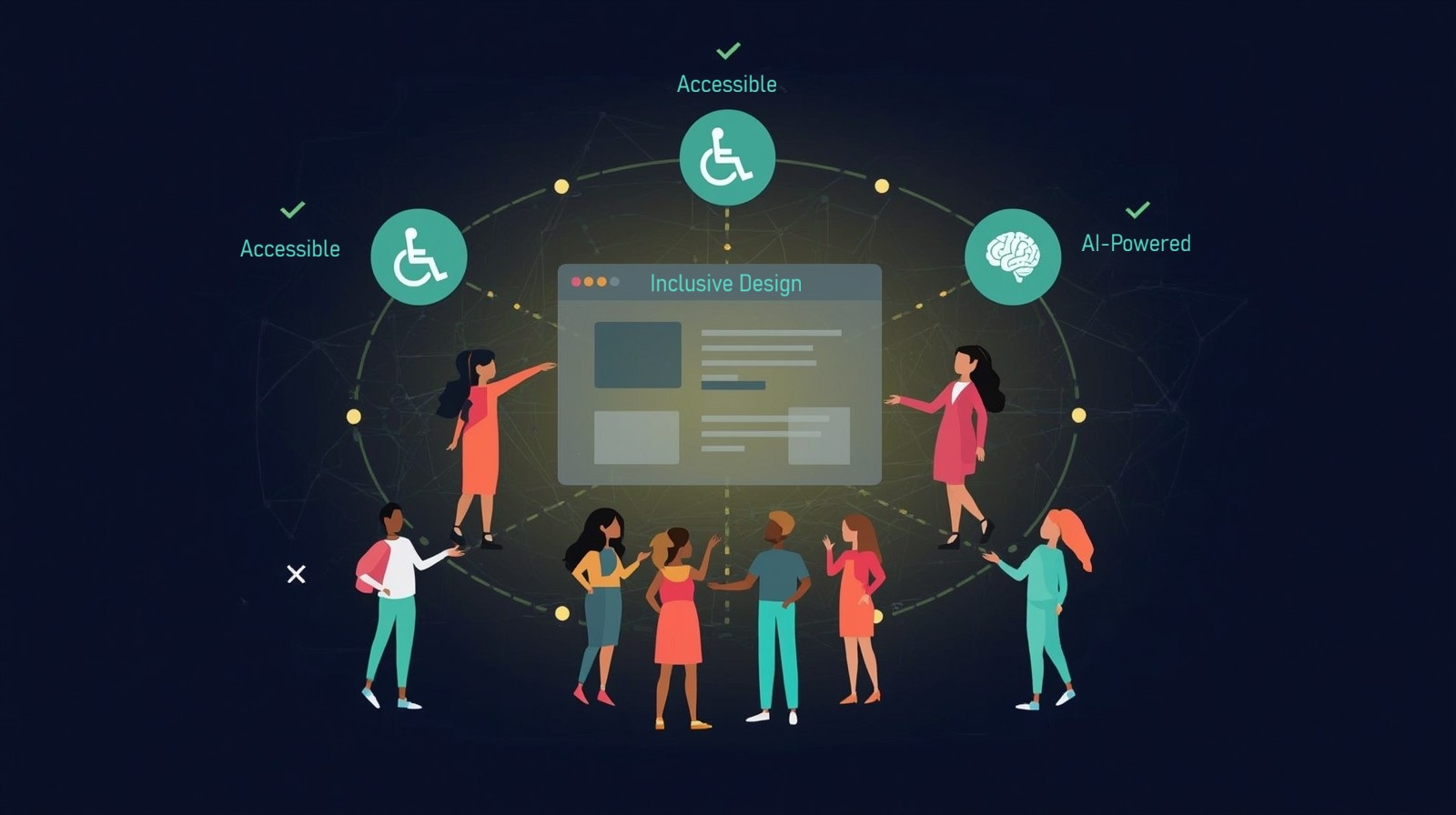
AI for Accessible Website Design isn’t just a nice-to-have anymore—it’s essential for reaching every potential user and staying compliant with accessibility standards. As someone who helps people work smarter with technology, I’ve seen firsthand how the right AI-powered tools can transform what used to be a weeks-long accessibility audit into a matter of hours. The best part? You don’t need to be a technical expert to make your website accessible to everyone.
Think about it: over one billion people worldwide live with some form of disability. That’s not just a moral imperative to make your website accessible—it’s a massive business opportunity you might be missing. Traditional accessibility testing required specialized knowledge, countless hours of manual checking, and often expensive consultants. But accessible websites are now within reach for everyone, thanks to AI tools that automate compliance checking, suggest fixes, and even implement solutions automatically.
The beauty of modern accessibility tools is that they work while you sleep. They continuously monitor your site, catch issues before they become problems, and help you maintain WCAG compliance without the headache. Let me walk you through the tools that make such tasks possible, saving teams countless hours while creating a truly inclusive design that welcomes all users.
Why These AI Accessibility Tools Matter
Before we dive into specific tools, let’s talk about why this matters for your workflow. Traditional accessibility testing meant hiring specialists, running manual checks on every page, and hoping you caught everything before launch. One missed alt text or improper heading structure could mean a lawsuit or, worse, losing users who can’t access your content.
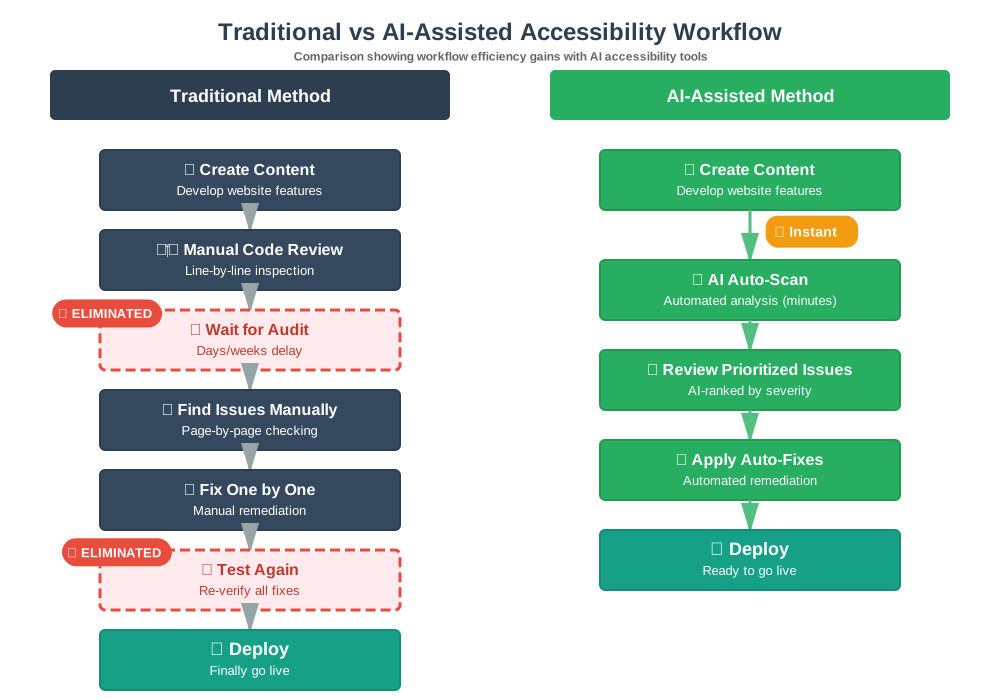
Assistive technology users rely on properly coded websites to navigate, read content, and complete transactions. When your site isn’t accessible, you’re literally turning away potential customers, readers, or clients. But here’s the productivity win: AI tools now handle the heavy lifting. They scan your entire site in minutes, prioritize issues by severity, and often provide one-click fixes. What used to take days now takes hours—and you can focus on creating great content instead of debugging code.
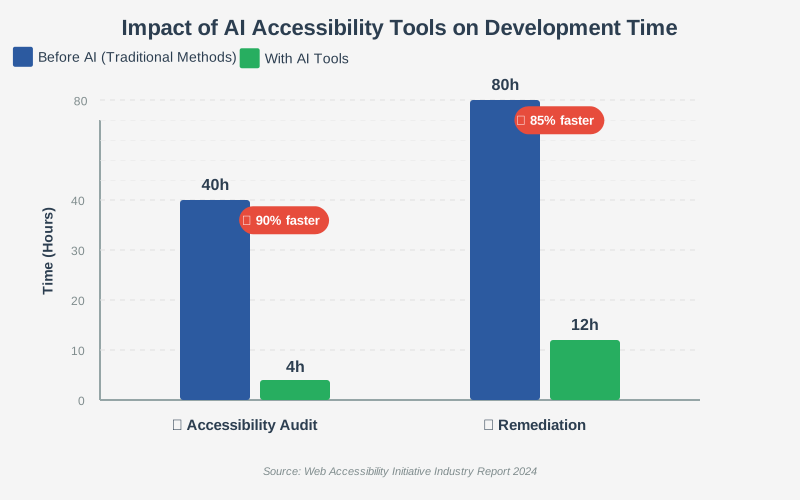
Here’s how the accessibility workflow transforms when you introduce AI tools into your process:
accessiBe: Your AI-Powered Accessibility Autopilot
AccessibleBe is like having an accessibility expert working on your site around the clock. This tool uses machine learning to scan your entire website and automatically apply accessibility fixes. I’ve recommended it to dozens of clients who needed fast results without hiring a dedicated accessibility team.
What makes it special: accessiBe doesn’t just find problems—it fixes them. The AI scans your site every twenty-four hours, adapting to content changes and maintaining compliance automatically. It handles everything from screen reader optimization to keyboard navigation adjustments.
Practical use case: Imagine you run an e-commerce site with thousands of product pages. Manually adding alt text to every image would take weeks. accessiBe’s AI analyzes images using computer vision and generates contextually appropriate alt text automatically. You review and approve, saving dozens of hours while ensuring visually impaired users can shop your entire catalog.
Beginner tips: Start with the free trial to see the accessibility issues on your site. The dashboard categorizes problems by severity, so tackle critical issues first. Don’t panic when you see the initial scan results—most sites have more issues than expected. Focus on the automated fixes first, then review customizations needed for your specific content. The interface widget allows users to adjust display settings themselves, reducing the burden on your development team.
UserWay: Intelligent Accessibility That Learns
UserWay takes a slightly different approach by combining automated fixes with user-driven customization. This tool learns from user behavior to improve accessibility over time, making it smarter with every interaction.
What makes it special: The AI Accessibility Widget adapts to individual user needs. Someone with dyslexia might need different accommodations than someone with motor impairments. UserWay remembers preferences and applies them automatically on return visits, creating a personalized, accessible experience.
Practical use case: You’re managing a news website with constantly updating content. UserWay’s AI automatically processes new articles as they’re published, ensuring that breaking news is immediately accessible to all readers. The contextual analysis understands whether images are decorative or informative, applying appropriate accessibility treatments without human intervention.
Beginner tips: Install the widget on a test page first to understand how it works before going live. The analytics dashboard shows which accessibility features users engage with most—use this data to improve your native accessibility features over time. Pay attention to the violation reports; they highlight areas where your content management workflow might need adjustment. The AI gets better as you use it, so don’t judge performance solely on the first week.
EqualWeb: Enterprise-Grade AI Accessibility
For larger organizations managing multiple websites, EqualWeb offers robust WCAG compliance monitoring with sophisticated AI that handles complex web applications. This is the tool I recommend when teams need detailed reporting and integration with existing development workflows.
What makes it special: EqualWeb’s AI doesn’t just scan static pages—it understands dynamic content, JavaScript applications, and complex user interfaces. The machine learning models are trained specifically on web accessibility standards, making recommendations that align perfectly with WCAG guidelines.
Practical use case: Your company operates ten different websites across various brands. EqualWeb’s centralized dashboard monitors all properties simultaneously, flagging issues and providing consistent accessibility standards across your digital ecosystem. The automated remediation engine works behind the scenes, while compliance reports are generated automatically for legal and audit purposes.
Beginner tips: Take advantage of the onboarding consultation—EqualWeb’s team helps prioritize your specific accessibility challenges. Use the developer API to integrate accessibility checks into your build process, catching issues before they reach production. Schedule regular compliance reports to track improvement over time and demonstrate progress to stakeholders. The AI generates remediation estimates, helping you plan sprints and allocate resources effectively.
AudioEye: Continuous Monitoring with AI Precision
AudioEye distinguishes itself through continuous, real-time monitoring that catches accessibility issues the moment they appear. This proactive approach prevents problems rather than just fixing them after the fact.
What makes it special: The assistive technology testing happens automatically across actual devices and screen readers. AudioEye’s AI simulates how different users experience your site, identifying issues that purely automated tools might miss. It’s like having a quality assurance team testing accessibility twenty-four seven.
Practical use case: You’re launching a new feature on your web application. As soon as the feature goes live, AudioEye’s AI tests it with simulated screen readers, keyboard-only navigation, and various assistive devices. If something breaks accessibility, you get alerted immediately—often before users encounter the problem.
Beginner tips: Use the detailed issue tracking to learn common accessibility patterns in your codebase. Many problems stem from repeated mistakes in templates or components. Fix these at the source to prevent future issues. The AudioEye team provides certification support, which is valuable if you’re in a regulated industry. Set up alerts for high-priority issues so your team can respond quickly when critical accessibility problems emerge.
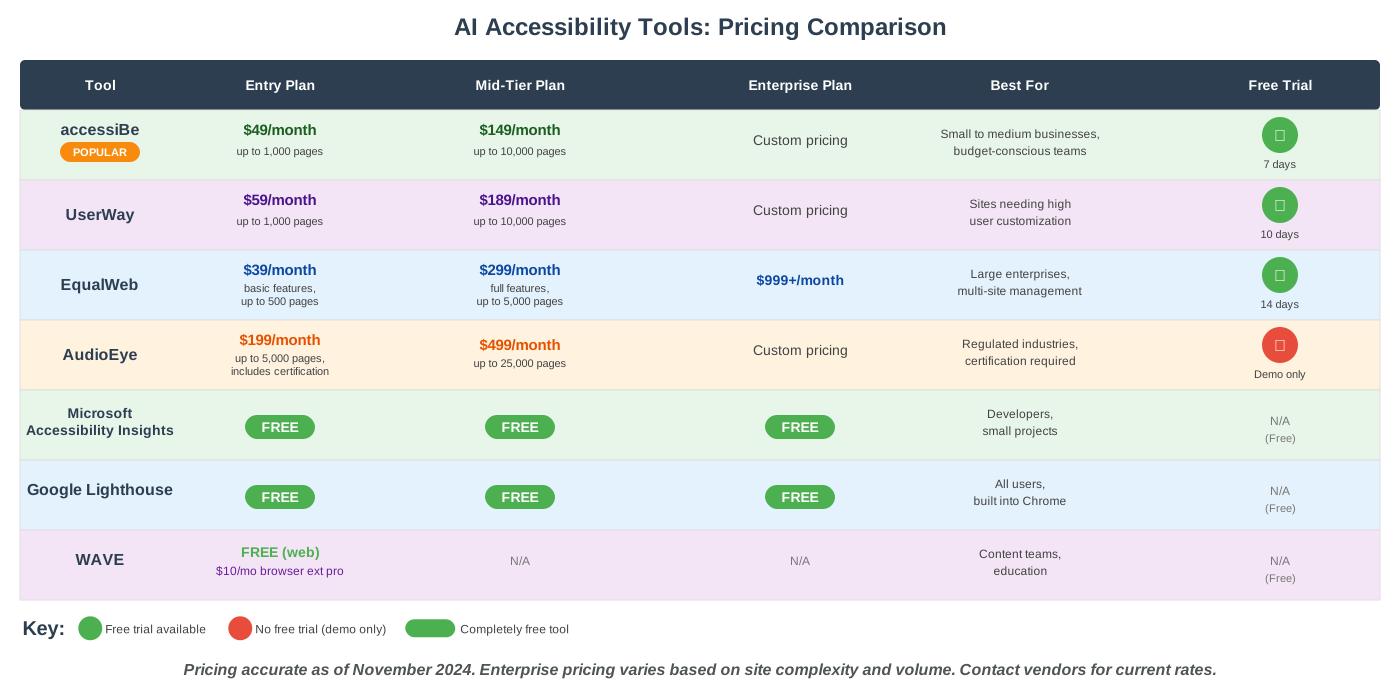
Pricing Breakdown: What You’ll Actually Pay
Let’s talk real numbers. One of the biggest questions I get is, “What will this project actually cost my business?” Here’s a transparent breakdown of what you can expect to invest, along with what you get for your money.
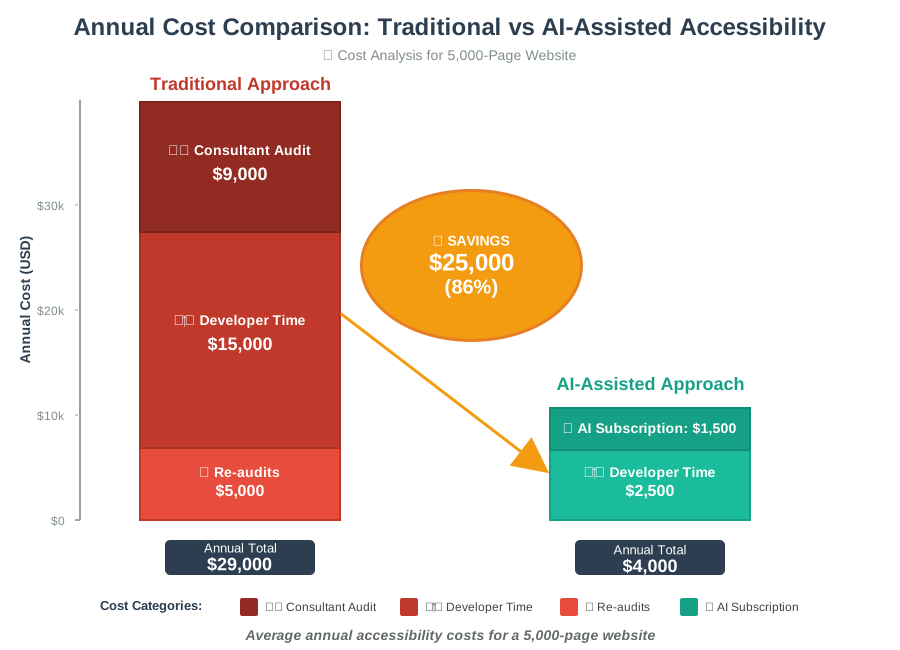
Cost-Benefit Analysis
To put these prices in perspective, consider the alternative costs:
Traditional Accessibility Approach:
- Accessibility consultant audit: $3,000-$15,000 (one-time)
- Developer remediation time: $5,000-$25,000 (based on 80-100 hours)
- Annual re-audits: $2,000-$8,000
Annual total: $10,000-$48,000
AI-Assisted Approach:
- AI tool subscription: $588-$2,388 annually (for most businesses)
- Reduced developer time: $1,500-$3,000 (12-15 hours)
- Continuous monitoring: Included
Annual total: $2,088-$5,388
Potential savings: $7,912-$42,612 per year (67-89% cost reduction)
Beyond direct costs, consider the risk mitigation value. The average ADA website accessibility lawsuit settlement ranges from $10,000 to $75,000, plus legal fees. Proactive accessibility through AI tools costs a fraction of reactive legal defense.
Microsoft Accessibility Insights: Free Developer-Focused AI
For developers who want granular control, Microsoft Accessibility Insights offers powerful AI analysis without the subscription cost. This browser extension brings enterprise-level accessibility testing to individual developers and small teams.
What makes it special: The FastPass feature uses AI to prioritize the most impactful accessibility issues. Rather than overwhelming you with hundreds of findings, it focuses on the problems that affect the most users. The tool also provides specific code fixes, teaching you accessible development patterns as you work.
Practical use case: You’re building a new website feature and want to ensure accessibility from the start. As you develop, Accessibility Insights runs in the background, flagging issues in real time. The AI suggests specific ARIA labels, heading structures, and keyboard navigation patterns that match your use case. By the time you’re ready to deploy, your feature is already accessible.
Beginner tips: Start with the Assessment feature on your most important pages. The guided workflow walks you through manual checks that AI can’t fully automate, like verifying that focus indicators are visible or that form labels make sense contextually. Export reports to share with your team and track remediation progress. The tool integrates with developer workflows, catching accessibility issues during the development phase rather than after launch.
Google Lighthouse: Built-In Accessibility Auditing
Google Lighthouse might be familiar if you’ve ever checked your site’s performance, but its accessibility auditing capabilities are equally powerful. This free tool runs comprehensive checks and provides actionable recommendations prioritized by impact.
What makes it special: Lighthouse is already integrated into Chrome DevTools, meaning zero setup is required. The accessibility score directly influences SEO rankings, making this tool both an accessibility and a business optimization resource. The AI-powered suggestions link directly to documentation, helping you understand not just what to fix, but why it matters.
Practical use case: You’re optimizing your website for search engines and discover that accessibility issues are hurting your rankings. Lighthouse reveals that missing alt text, poor color contrast, and improper heading hierarchy are dragging down your score. The report provides specific fixes with code examples, and you can rerun audits instantly to verify improvements.
Beginner tips: Run Lighthouse audits regularly during development—make it part of your quality checklist before deploying changes. Focus on fixing issues marked as “serious” first; these have the biggest impact on users and your accessibility score. Use the throttling options to test how your site performs for users with slower connections or devices. The performance and accessibility scores often improve together, so optimization work does double duty.
WAVE by WebAIM: Visual Accessibility Feedback
WAVE takes a unique visual approach to accessibility testing. Instead of just listing problems, it overlays icons and alerts directly on your webpage, showing exactly where issues exist in context. This visual feedback makes it incredibly easy to understand what needs fixing and why.
What makes it special: The in-page visualization helps non-technical team members understand accessibility issues. Content creators can see when their images lack alt text or when heading structures skip levels. This democratizes accessibility—everyone on the team can contribute to making your site more inclusive in design without needing to understand code.
Practical use case: You’re training your content team on accessibility best practices. Instead of abstract lectures about WCAG guidelines, you pull up WAVE and show them their actual content with overlaid alerts. They immediately see when a heading is misused or when link text is unclear. The visual learning accelerates understanding and changes behavior faster than traditional training.
Beginner tips: Use the browser extension for quick checks while you work. The contrast checker is particularly valuable—it shows exactly which text fails to meet minimum contrast requirements against backgrounds. Pay attention to the alerts versus errors distinction; errors must be fixed, while alerts might be acceptable depending on context. The reference documentation explains each issue type thoroughly, making WAVE an educational tool as much as an auditing one.
Quick Selection Guide: Which Tool Is Right for You?
Choosing the right accessibility tool depends on your specific situation. Here’s my recommendation framework based on hundreds of client implementations:
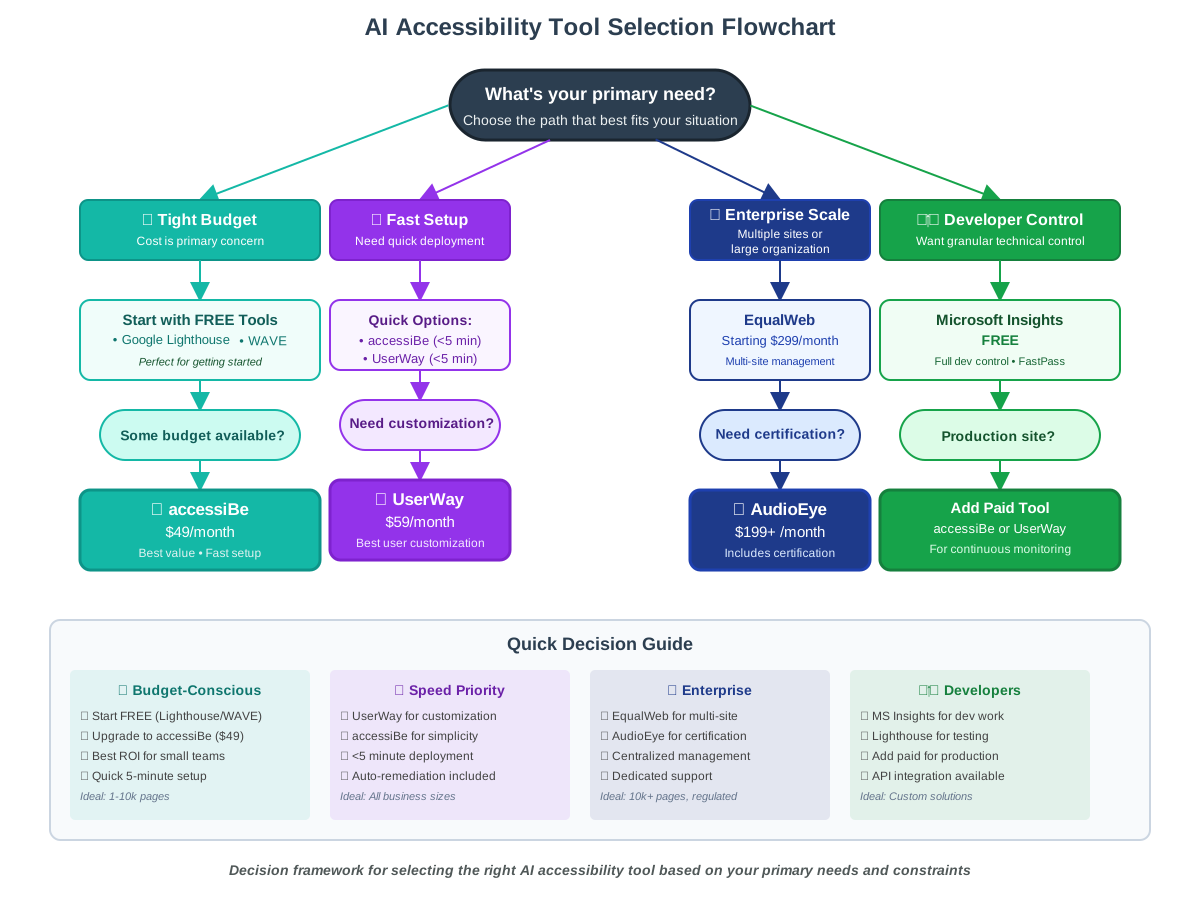
Selection Criteria at a Glance
Choose accessiBe if you:
- Need the fastest, easiest setup
- Have a small- to medium-sized website (under 10,000 pages)
- Want the best value for money
- Prefer automated solutions over manual control
- Are new to accessibility compliance
Choose UserWay if you:
- Want extensive user-facing customization options
- Have diverse user needs across your audience
- Value learning from user behavior data
- Need detailed analytics on accessibility feature usage
- Want to provide personalized accessible experiences
Choose EqualWeb if you:
- Manage multiple websites or brands
- Need centralized compliance reporting
- Require enterprise-grade security and support
- Have complex web applications (not just static sites)
- Need integration with existing development workflows
Choose AudioEye if you:
- Operate in a regulated industry (finance, healthcare, education)
- Need formal accessibility certification
- Have a high-traffic site where downtime isn’t acceptable
- Want the most thorough assistive technology testing
- Have budget for premium features and support
Start with Free Tools if you:
- Are a solo developer or small team
- Want to learn accessibility fundamentals
- Need occasional testing rather than continuous monitoring
- Are building a new project from scratch
- Have technical skills and time for manual remediation
Frequently Asked Questions About AI Accessibility Tools
What’s the actual return on investment for accessibility tools?
Let me break down the real numbers I’ve seen across dozens of implementations. The ROI for accessibility tools goes far beyond just compliance costs—it impacts your entire business:
Direct Cost Savings:
- Legal risk mitigation: $50,000-$100,000 average (cost of defending accessibility lawsuit)
- Reduced development time: $7,500-$15,000 annually (30-60 hours saved at $250/hr developer rate)
- Eliminated consultant fees: $5,000 to $20,000 annually
- Faster time-to-market: 2-3 weeks faster launch for new features
Revenue Impact:
- Expanded market reach: 15-20% audience increase (1+ billion people with disabilities globally)
- Improved SEO rankings: 10-15% organic traffic increase (accessibility factors into Google rankings)
- Higher conversion rates: 2-4% improvement (better UX benefits all users)
- Reduced bounce rates: 5-8% improvement from better navigation
Example ROI Calculation for a Mid-Sized E-Commerce Site:
- Investment: $1,788 annually (UserWay at $149/month)
- Legal risk avoided: $75,000 (average lawsuit cost)
- Developer time saved: $10,000 (40 hours × $250/hr)
- Revenue increase: $50,000 (2% conversion improvement on $2.5M revenue)
- Net benefit: $133,212
- ROI: 7,350% in first year
Even being conservative and only counting direct cost savings (ignoring revenue gains), you’re looking at a 400-600% ROI in the first year for most businesses. By year two, when you’re just paying the subscription with minimal implementation costs, ROI jumps even higher.
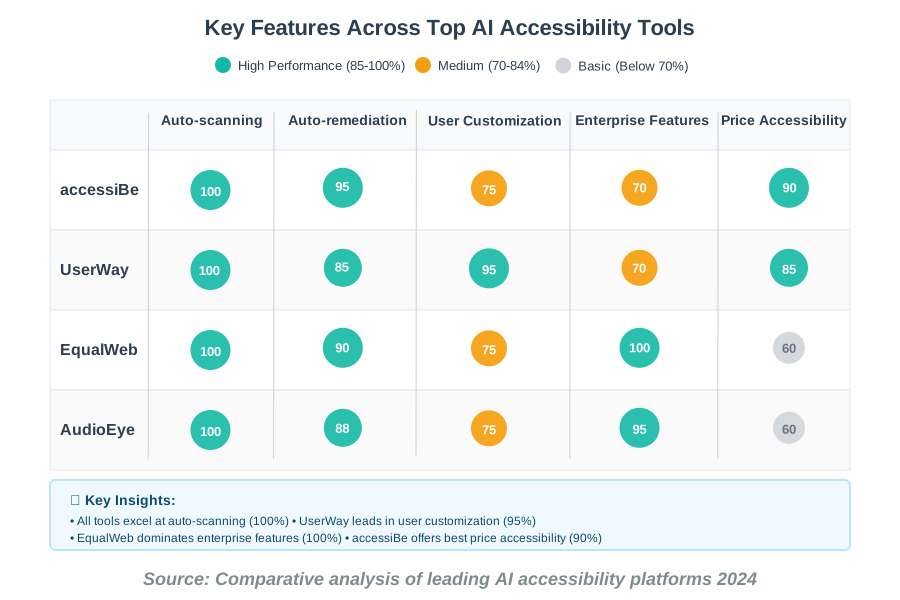
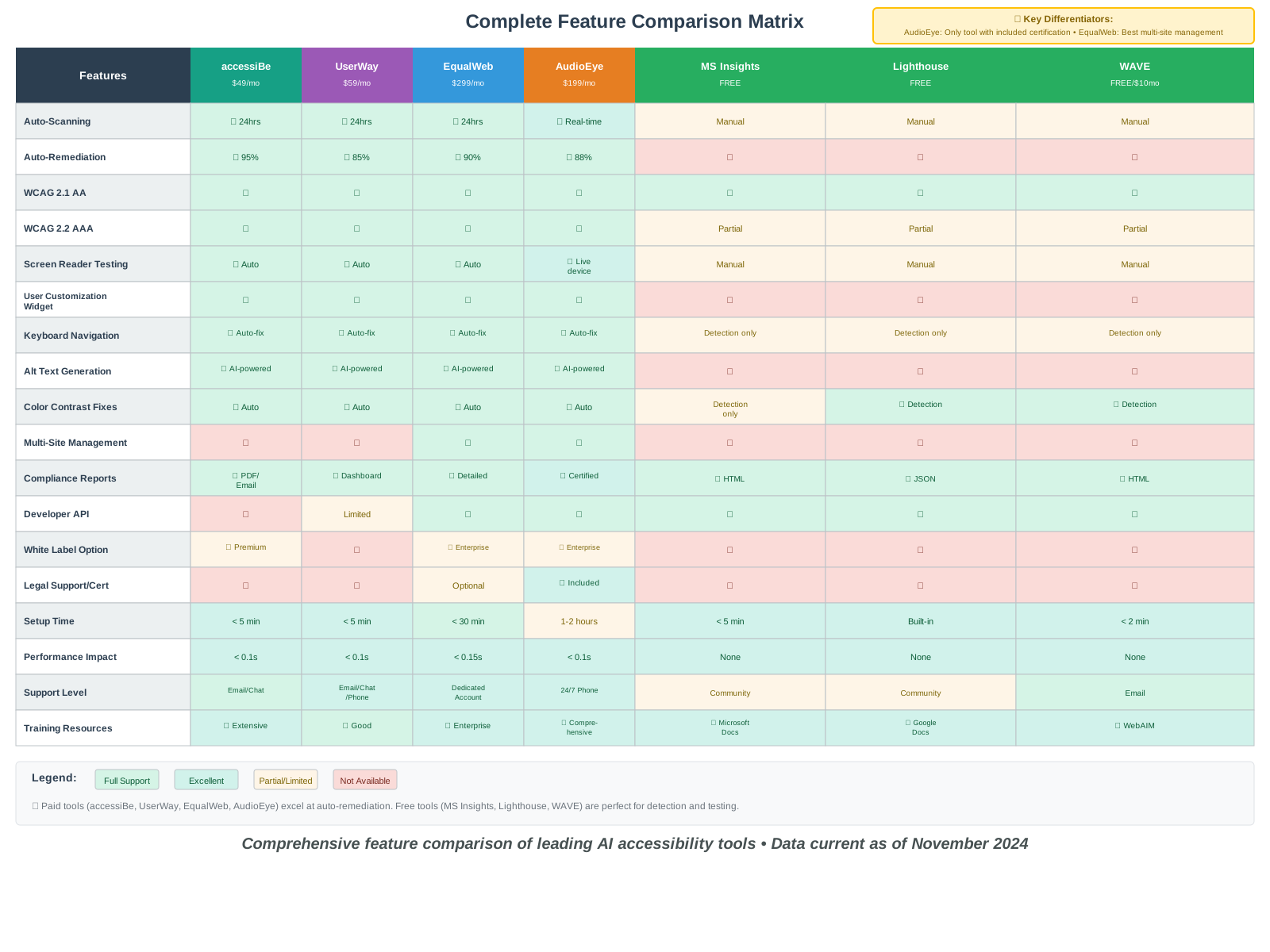
Complete Feature Comparison Matrix
What These Features Mean for You
Auto-remediation percentage indicates how many accessibility issues the tool fixes automatically without requiring developer intervention. Higher is better for saving time.
Setup time reflects how quickly you can have the tool running on your site from initial sign-up to active monitoring.
Performance impact indicates the average increase in load time that users experience. All modern tools are optimized to be imperceptible.
Support level matters significantly when you’re facing urgent accessibility issues or dealing with legal concerns.
Making Accessibility Part of Your Daily Workflow
The real power of these AI tools emerges when you integrate them into your regular workflow rather than treating accessibility as an afterthought. Set up automated weekly scans so you catch issues early. Enable notifications for critical violations so you can respond immediately. Train your entire team—not just developers—on basic accessibility principles using these tools as teaching aids.
Remember that accessibility benefits everyone, not just users with disabilities. Clear navigation helps rushed users. Good color contrast reduces eye strain. Semantic HTML improves load times and SEO. When you optimize for accessibility, you’re optimizing for all users while expanding your potential audience significantly.
The productivity gains are substantial. What used to require dedicated accessibility specialists and weeks of manual checking now happens automatically in the background. Your team focuses on creating great content and features while AI handles the compliance heavy lifting. Issues get caught and fixed before they impact users or expose you to legal risk.
Take Action Today
Start with the free tools—run Google Lighthouse and Microsoft Accessibility Insights on your most important pages right now. The reports will take fifteen minutes and reveal exactly where your accessibility stands. For automated remediation and ongoing monitoring, try one of the paid solutions that fits your budget and technical comfort level.
Don’t let the initial scan results discourage you. Every website has accessibility issues; what matters is demonstrating progress and commitment to improvement. Pick the critical issues first—usually missing alt text, color contrast problems, and heading structure. These quick wins immediately improve the experience for users who rely on assistive technology while building momentum for larger improvements.
The best time to make your website accessible was when you first built it. The second-best time is right now. These AI tools remove the traditional barriers of cost, time, and technical expertise that kept many websites inaccessible. You have the tools, you have the knowledge—now make your digital presence welcoming to everyone who wants to engage with your content.
Your accessible website isn’t just compliant—it’s better for everyone who visits.
About the Author
James Carter is a productivity coach specializing in AI-powered workflow optimization. With over a decade of experience helping teams work smarter, James focuses on practical strategies that save time while improving outcomes. He believes technology should simplify work, not complicate it—and has helped hundreds of organizations implement accessible digital practices that benefit everyone. When not consulting, James experiments with emerging AI tools to discover efficiency gains before they become mainstream.