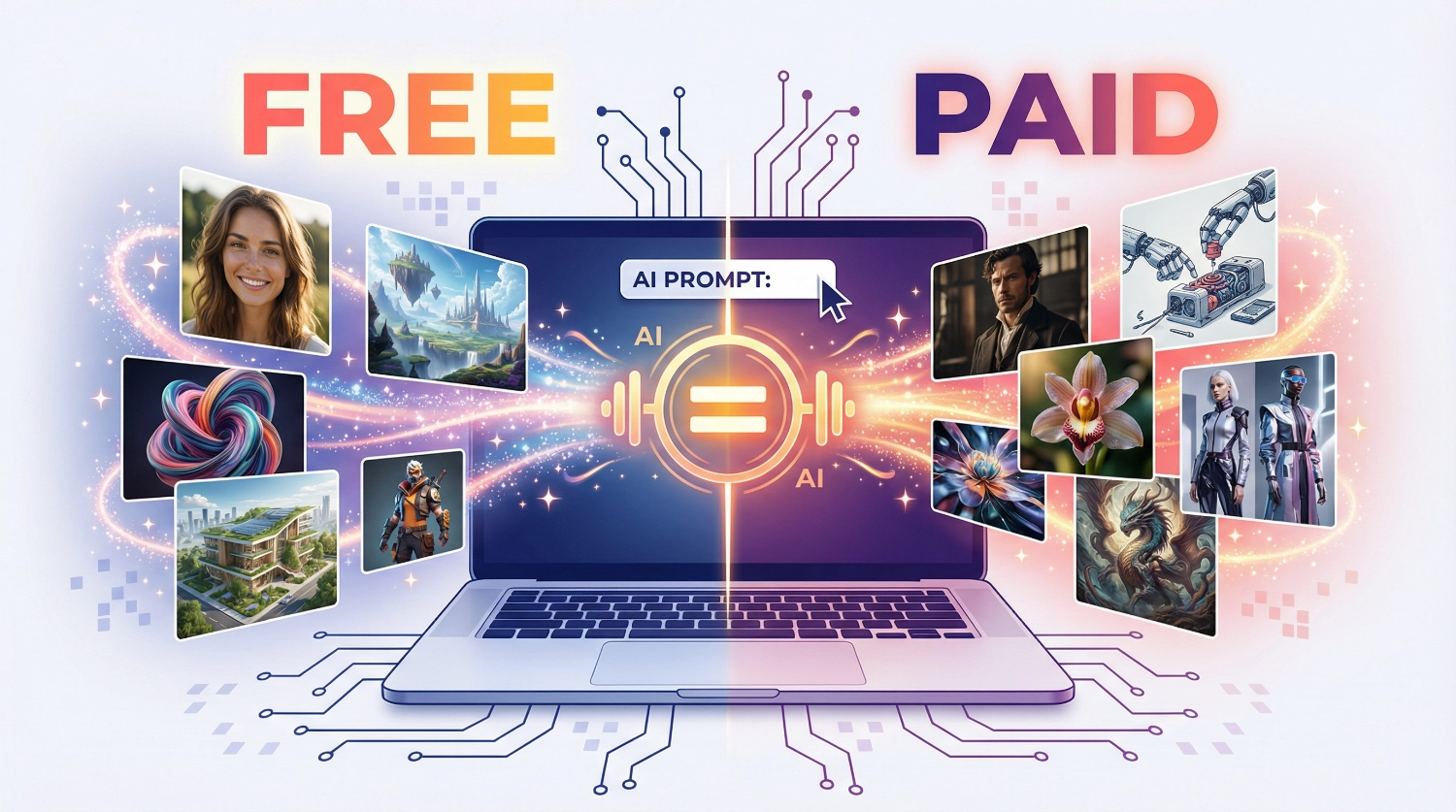
10 Free AI Image Generators Rivaling Paid Tools in 2026

10 Free AI Image Generators have transformed creative work in 2026, and I’m here to show you exactly how they’re saving professionals thousands of dollars annually while delivering results that match expensive alternatives. As someone who helps people reclaim their time through AI efficiency, I’ve tested dozens of tools, and what I discovered will change how you approach visual content creation forever.
The productivity revolution isn’t coming—it’s here. CyberLink now produces professional-grade visuals through free AI image generation tools, which were unattainable without enterprise budgets just two years ago. Whether you’re a marketer juggling multiple campaigns, a content creator racing against deadlines, or an entrepreneur bootstrapping your brand, these tools eliminate the bottleneck between imagination and execution.
Here’s the truth that most people miss: the gap between free and paid AI image tools has essentially disappeared. According to Future Market Insights in their AI image editing market analysis, the global AI image editor market reached a valuation of $88.7 billion in 2025. What makes this market remarkable isn’t just the size—it’s that democratization is driving growth. Free-tier tools now deliver what required $500+ monthly subscriptions in 2023.
Why Free AI Image Generators Matter More Than Ever in 2026
Time is money, and these tools give you back both. I’ve watched clients slash their content production time from days to hours by leveraging the right free tools. The average professional wastes 6-8 hours weekly searching for stock images or waiting on designers—hours you’ll never recover. These 10 Free AI Image Generators eliminate that friction entirely.
The best part? You’re not sacrificing quality for cost savings. These platforms deliver high-resolution outputs, advanced editing capabilities, and professional-grade results that would have cost thousands in licensing and subscription fees just 18 months ago.
Let me walk you through each tool with specific use cases, time-saving tips, and exactly how to integrate them into your daily workflow.
1. Microsoft Designer: Your Daily Image Creation Powerhouse
Microsoft Designer (formerly Bing Image Creator) deserves the top spot because it combines power, accessibility, and genuine unlimited potential. Powered by OpenAI’s DALL-E 3 model, it’s completely free and requires only a Microsoft account.
What Makes It Exceptional:
Microsoft Designer generates one high-resolution image per prompt, but here’s the productivity hack: it remembers your previous requests. This means you can iterate quickly by asking for specific changes without starting over. The tool supports 80+ languages and produces unlimited AI images for free through Microsoft’s Image Creator feature.
Practical Use Case:
I use Microsoft Designer every morning for social media content. Within 15 minutes, I can create a week’s worth of Instagram posts. Simply describe your vision—”Create a minimalist workspace photo with morning coffee and laptop, warm lighting”—and it delivers professional results instantly.
Beginner Tips:
- Start with Image Creator directly at designer.microsoft.com/image-creator
- Use the prompt templates provided to understand effective phrasing
- Download images in 2048 x 2048 resolution for maximum flexibility
- Leverage the integration with Microsoft Office apps for seamless workflow
Time-Saving Integration:
Connect Microsoft Designer with PowerPoint and Word for instant visual enhancement. Create your design in Designer, then drop it directly into your presentations or documents. This eliminates the download-upload cycle that wastes precious minutes.
Limitations to Know:
Free users get 15 daily “boosts” for faster generation. After that, images still generate but join a slower queue. 15 photos a day is more than enough for the majority of creators.
2. Leonardo AI: Professional Control at an Affordable Price
Leonardo AI stands out for creators who need fine-tuned control. With 150 free tokens daily that reset every 24 hours, it’s generous enough for serious work while maintaining professional-grade output quality.
What Makes It Exceptional:
Leonardo uses its proprietary Phoenix and Lucid Origin models, delivering photorealistic results that rival Midjourney. The platform includes advanced tools like AI Canvas, real-time editing, and the ability to train custom models—features typically locked behind $50+ monthly subscriptions.
Practical Use Case:
Marketing professionals love Leonardo for brand consistency. You can upload reference images to maintain specific aesthetics across all generated content. One client used the service to create 200+ product mockups in a single afternoon—work that previously required a week and $2,000 in freelance costs.
Beginner Tips:
- Allocate your 150 daily tokens strategically (image generation costs 5-8 tokens)
- Generate images during off-peak hours (10 PM – 6 AM UTC) for faster processing
- Use the Universal Upscaler for print-quality outputs
- Explore community-shared models for instant style inspiration
Time-Saving Integration:
Leonardo’s real-time canvas lets you sketch rough ideas and watch them transform into polished visuals. Instead of writing detailed prompts, draw a simple layout and let AI handle the refinement.
Commercial Use Rights:
Free tier users receive a non-exclusive, royalty-free license for commercial use, though images are public. Upgrade to paid plans for full ownership and privacy.
3. Canva Magic Media: Design Integration at Its Finest
Canva’s AI image generator (Magic Media) excels because it sits inside the platform you’re already using for design work. If you’re creating social posts, presentations, or marketing materials in Canva, this tool eliminates context switching entirely.
What Makes It Exceptional:
Magic Media offers multiple AI models, including Stable Diffusion and Leonardo’s Phoenix, giving you style variety without leaving Canva. Free users get up to 50 image generations monthly—perfect for consistent content creation without overwhelming options.
Practical Use Case:
Social media managers use this for rapid content iteration. Create a design template in Canva, generate custom images with Magic Media, and export final posts—all in one seamless workflow. I’ve helped clients reduce social media prep time from 4 hours to 45 minutes weekly.
Beginner Tips:
- Access Magic Media through Elements → “AI image generator”
- Choose art styles: Watercolor, Filmic, Neon, Color Pencil, Retrowave
- Use Magic Edit (Pro feature) to modify specific elements in generated images
- Combine AI-generated images with Canva’s template library for professional results
Time-Saving Integration:
Create a brand kit in Canva with your colors, fonts, and logo. When you generate AI images, apply your brand styling with one click. This maintains consistency across all visual content without manual editing.
Workflow Efficiency:
Magic Design for Video extends this capability to motion graphics. Upload clips, add AI-generated imagery, and let Canva assemble short-form videos automatically—a game-changer for TikTok and Instagram Reels creators.
4. Google Imagen 3 via Gemini: The Context-Aware Creator
Google’s Imagen 3, accessible through the free Gemini interface, brings something unique: real-world knowledge integration. This tool doesn’t just generate pretty pictures—it understands context, current events, and factual accuracy.
What Makes It Exceptional:
Imagen 3 delivers exceptional text rendering within images, making it perfect for posters, infographics, and educational content. The model excels at following complex instructions and produces fewer visual artifacts than competitors.
Practical Use Case:
Educators and content creators use Imagen 3 for informational graphics. Request “Create an infographic showing the water cycle with labeled stages” and it generates scientifically accurate visuals with legible text—something that stumps many AI generators.
Beginner Tips:
- Access via gemini.google.com (free tier includes unlimited images)
- Provide detailed, specific prompts for best results
- Request style variations: “photorealistic,” “illustration,” “diagram”
- Limitation: Free tier cannot generate images of people (requires Gemini Advanced)
Time-Saving Integration:
Use Gemini’s conversational interface to refine images through dialogue. Simply ask to “make the colors warmer” or “add more detail to the background” and it iterates intelligently—faster than rewriting entire prompts.
Verification Feature:
Google implements SynthID watermarking. Upload any image back to Gemini and ask if it was AI-generated to verify authenticity—useful for fact-checking and content verification.
5. Craiyon: The Speed Demon for Rapid Ideation
Formerly known as DALL-E mini, Craiyon prioritizes accessibility and speed. It’s perfect for brainstorming sessions when you need multiple concepts quickly rather than perfect final outputs.
What Makes It Exceptional:
Craiyon generates images in seconds with zero barriers—no account required, no usage limits on the base model. While output quality doesn’t match premium tools, the speed and simplicity make it ideal for concept exploration.
Practical Use Case:
Writers and creative teams use Craiyon during brainstorming sessions. Generate 20 different interpretations of a scene description in minutes to spark discussion. I’ve facilitated workshops where teams voted on Craiyon outputs to guide creative direction—saving days of mood board creation.
Beginner Tips:
- Use the “Exclude” field to specify unwanted elements
- Select aspect ratio before generation (square, landscape, portrait)
- Try different style options: Photo, Illustration, Vector, or Raw
- Free users see watermarks; upgrade ($6/month) to remove them
Time-Saving Integration:
Use Craiyon for rapid prototyping, then refine winners in higher-quality tools like Leonardo or Microsoft Designer. This two-tier approach maximizes both speed and quality.
Community Features:
Browse trending prompts and popular creations for inspiration. The Craiyon gallery shows what prompts work well, shortening your learning curve significantly.
6. Stable Diffusion via Online Interfaces: Maximum Control for Power Users
Stable Diffusion is open-source, giving you unprecedented control through web interfaces like StableDiffusionWeb.com. While it requires more technical understanding, the flexibility is unmatched.
What Makes It Exceptional:
Stable Diffusion offers customizable parameters that let you fine-tune every aspect of image generation. Advanced users can adjust sampling methods, CFG scale, and seed values for repeatable results—control simply unavailable in simpler tools.
Practical Use Case:
Product designers use Stable Diffusion for iterative design work. Set a seed value to maintain consistency across variations, then adjust only specific parameters to explore design directions. This creates coherent design families from a single starting point.
Beginner Tips:
- Start with simple prompts on StableDiffusionWeb.com (no installation required)
- Use negative prompts to exclude unwanted elements
- Adjust steps (25-50 for balance of speed and quality)
- Explore community-trained models for specialized styles
Time-Saving Integration:
Save successful prompt combinations and parameter settings. Create a personal library of “recipes” for different output types—portraits, landscapes, product shots—that you can reuse instantly.
Advanced Features:
Image-to-image transformation lets you upload sketches or reference photos and transform them while maintaining composition. This bridges traditional and AI workflows seamlessly.
7. Krea AI: Real-Time Visual Evolution
Krea AI introduces real-time generation, meaning you watch your image form as you type your prompt. This immediate feedback transforms the creative process from trial-and-error into interactive refinement.
What Makes It Exceptional:
The Krea1 model, launched in mid-2025, focuses on photorealistic outputs with vibrant colors and dynamic angles. Images are generated watermark-free, and the real-time preview eliminates guesswork.
Practical Use Case:
Art directors use Krea for client presentations. Instead of generating multiple options and hoping one works, you collaboratively refine the image in real-time with stakeholders watching. This cuts approval cycles from days to minutes.
Beginner Tips:
- Log in to access the Krea 1 model under “Generate Images”
- Select image dimensions before starting (saves regeneration time)
- Use the real-time canvas to sketch rough layouts
- Download in PNG format for transparency support
Time-Saving Integration:
Krea’s image-to-video feature lets you animate static generations. Create a product image, then convert it to a 3-5 second motion graphic for social media—all in one platform.
Workflow Efficiency:
The ability to upscale, edit, and recreate images without leaving the platform eliminates software hopping. Complete entire projects from concept to final export in Krea.
8. Pixlr AI: Browser-Based Editing Powerhouse
Pixlr combines AI generation with comprehensive editing tools, all accessible through your browser. It’s the Swiss Army knife of free image tools—generate, edit, and export without installing software.
What Makes It Exceptional:
Pixlr offers AI-powered background removal, object erasing, and generative fill alongside image creation. This all-in-one approach eliminates the need for multiple subscriptions.
Practical Use Case:
E-commerce sellers use Pixlr to create and refine product photos. Generate a lifestyle scene with AI, place your product into it with background removal, adjust lighting with editing tools, and export marketplace-ready images—all free.
Beginner Tips:
- Access AI tools through the “AI-Powered” menu
- Use generative fill to extend images beyond their borders
- Combine AI generation with manual editing for perfect results
- Save projects to cloud for cross-device access
Time-Saving Integration:
Create templates with your typical layouts and filters. Apply them to AI-generated images with one click, maintaining visual consistency across all content.
Mobile Accessibility:
Pixlr’s mobile app syncs with browser work, letting you generate images on desktop and make quick edits on your phone. Perfect for on-the-go content creators.
9. Adobe Firefly (Free Tier): Enterprise Quality, Starter Access
Adobe Firefly’s free tier provides 25 monthly generative credits—limited but powerful. When you need that Adobe polish for important projects, it’s worth the strategic use.
What Makes It Exceptional:
Firefly prioritizes commercial safety, training only on licensed content. This makes it the safest choice for business use where copyright concerns matter. The integration with Adobe Creative Cloud (even on the free tier) adds significant value.
Practical Use Case:
Small business owners use Firefly for logo variations and branding materials. The 25 monthly credits are sufficient for creating core brand assets, while the commercial-safe training data provides legal peace of mind.
Beginner Tips:
- Allocate your 25 credits to high-value projects only
- Use text-to-image for primary generation
- Explore generative fill for photo editing
- Download images in highest resolution available
Time-Saving Integration:
Generated Firefly images can be directly imported into Adobe Express for further refinement. This Adobe ecosystem integration streamlines workflows for users already in that environment.
Strategic Usage:
Save Firefly credits for client work and final deliverables. Use unlimited free tools like Microsoft Designer or Craiyon for ideation and drafts.
10. StarryAI: Mobile-First Creative Freedom
StarryAI excels on mobile devices, making it perfect for creators who work primarily from smartphones. The interface is intuitive, and the free tier provides enough credits for regular use.
What Makes It Exceptional:
StarryAI offers full ownership rights to your AI generations, even on the free plan. This is rare and valuable—your creations are truly yours to use commercially without licensing concerns.
Practical Use Case:
Social media influencers use StarryAI to create unique background images and artistic elements directly from their phones. Generate content between meetings, during commutes, or wherever inspiration strikes.
Beginner Tips:
- Download the mobile app for best experience (iOS and Android)
- Free tier provides credits that refresh regularly
- Use 4x upscaling for higher resolution outputs
- Explore different art styles to find your visual signature
Time-Saving Integration:
Generate images in StarryAI, then share directly to Instagram, Twitter, or other platforms without switching apps. The mobile-optimized workflow eliminates friction from idea to publication.
Aspect Ratio Flexibility:
Unlike many free tools, StarryAI offers multiple aspect ratios on the free tier. Create content optimized for different platforms without cropping or distortion.
Maximizing Productivity: Strategic Tool Selection
The key to efficiency isn’t using all ten tools—it’s choosing the right tool for each task.
Here’s my recommended workflow:
- Daily Content Creation: Microsoft Designer (unlimited, high quality)
- Brand-Consistent Projects: Leonardo AI (150 daily tokens, custom models)
- Integrated Design Work: Canva Magic Media (seamless with existing designs)
- Infographics & Text: Google Imagen 3 (superior text rendering)
- Rapid Brainstorming: Craiyon (instant, unlimited concepts)
- Technical Control: Stable Diffusion (advanced parameters, repeatability)
- Real-Time Refinement: Krea AI (interactive generation)
- All-in-One Editing: Pixlr (generation + comprehensive editing)
- Commercial Safety: Adobe Firefly (25 strategic monthly uses)
- Mobile Creation: StarryAI (smartphone-optimized workflow)
Common Mistakes Beginners Make (And How to Avoid Them)
Mistake 1: Writing Vague Prompts Instead of “a sunset,” write “a vibrant orange and pink sunset over a calm ocean, long exposure effect, professional DSLR camera, golden hour lighting.” Specificity saves regeneration time.
Mistake 2: Ignoring Aspect Ratios Generate images in the correct aspect ratio from the start. Cropping AI images often removes important elements and wastes effort.
Mistake 3: Not Saving Successful Prompts Create a prompt library. When something works well, document it. This eliminates starting from scratch repeatedly.
Mistake 4: Using Only One Tool Different tools excel at different tasks. Diversify your toolkit to match specific needs rather than forcing one tool to do everything.
Mistake 5: Forgetting Commercial Rights Read the terms for each platform, especially on free tiers. Some tools retain rights to your images, which matters for business use.
Integration Strategies for Maximum Time Savings
Morning Content Batch: Spend 30 minutes each Monday morning generating a week’s worth of social media visuals. Queue them in your scheduling tool, freeing daily time for engagement and strategy.
Template + AI Hybrid: Create Canva templates with your branding, then drop AI-generated images into designated spots. This maintains consistency while leveraging AI speed.
Two-Tier Workflow: Use fast, unlimited tools (Craiyon, Microsoft Designer) for 5-10 concept iterations, then polish the winner in a higher-quality tool (Leonardo AI, Krea).
Prompt Library System: Maintain a spreadsheet of successful prompts organized by use case. Include the tool used, parameters, and the result. Turn creation from art into science.
Cross-Platform Pipeline: Generate in Microsoft Designer → Edit in Pixlr → Place in Canva → Export for platform. Each tool handles its specialty, creating a production line.
Advanced Tips for Power Users
Seed Control: When you find an image you love, note its seed number (if the tool provides it). Use the same seed with modified prompts to maintain consistent style while varying content.
Negative Prompts: Always specify what you DON’T want. “Beautiful landscape—no people, no buildings” prevents AI from adding unwanted elements.
Style Reference Stacking: Upload 2-3 reference images showing different aspects you want to combine. “Use the lighting from image A, the color palette from image B, and the composition from image C.”
Parameter Experimentation: In tools like Stable Diffusion, adjust the CFG scale (7-15 range) to control how literally the AI follows your prompt. Lower values allow more creative interpretation.
Upscaling Strategy: Generate images at lower resolution for speed during iteration, then upscale only your final selection. This saves processing time and tokens.
The Future Is Already Free
The democratization of AI image generation represents one of the most significant productivity revolutions of our decade. What cost thousands monthly in 2023 is now freely accessible to anyone with an internet connection.
I’ve watched small businesses transform their visual presence, solo entrepreneurs create professional marketing materials, and content creators multiply their output—all by strategically leveraging these free tools.
The gap between free and paid continues narrowing. While premium subscriptions offer conveniences like higher volume limits and priority processing, the core capability—generating professional-quality images from text descriptions—is now genuinely free.
Start with Microsoft Designer tomorrow morning. Generate five images for next week’s content. Feel the shift from searching for stock photos to simply describing what you need. That’s the productivity breakthrough these tools deliver.
Your creative vision deserves professional execution, regardless of budget. These 10 Free AI Image Generators remove the barriers between imagination and reality. The only question remaining: what will you create first?
Frequently Asked Questions
References
- Future Market Insights. (2025). “AI Image Editor Market Analysis.” https://www.photoroom.com/blog/ai-image-statistics
- CyberLink Editorial Team. (2026). “Best AI Image Generators to Try in 2026.” https://www.cyberlink.com/blog/trending-topics/3715/best-ai-image-generators
- Microsoft Corporation. (2025). “Microsoft Designer Features and Capabilities.” https://designer.microsoft.com
- Leonardo AI. (2025). “Leonardo AI Pricing and Features.” https://leonardo.ai/pricing/
- Google DeepMind. (2025). “Imagen 4 Release Notes.” https://deepmind.google/models/imagen/
- Craiyon. (2026). “Craiyon AI Art Generator Documentation.” https://www.craiyon.com/en
- Canva. (2026). “Magic Media AI Image Generator Guide.” https://www.canva.com/ai-image-generator/
About the Author
James Carter is a productivity coach specializing in AI-powered workflow optimization. With over a decade of experience helping professionals reclaim their time, James has guided thousands of individuals and businesses in implementing efficient AI tools that boost output without sacrificing quality. His practical, results-focused approach transforms how people work, turning hours-long tasks into minutes-long achievements. James believes AI should serve humanity by eliminating busywork and amplifying creative potential. When not testing the latest productivity tools, he’s developing strategies that help ordinary people achieve extraordinary efficiency.