AI for Accessibility: Text-to-Speech Guide

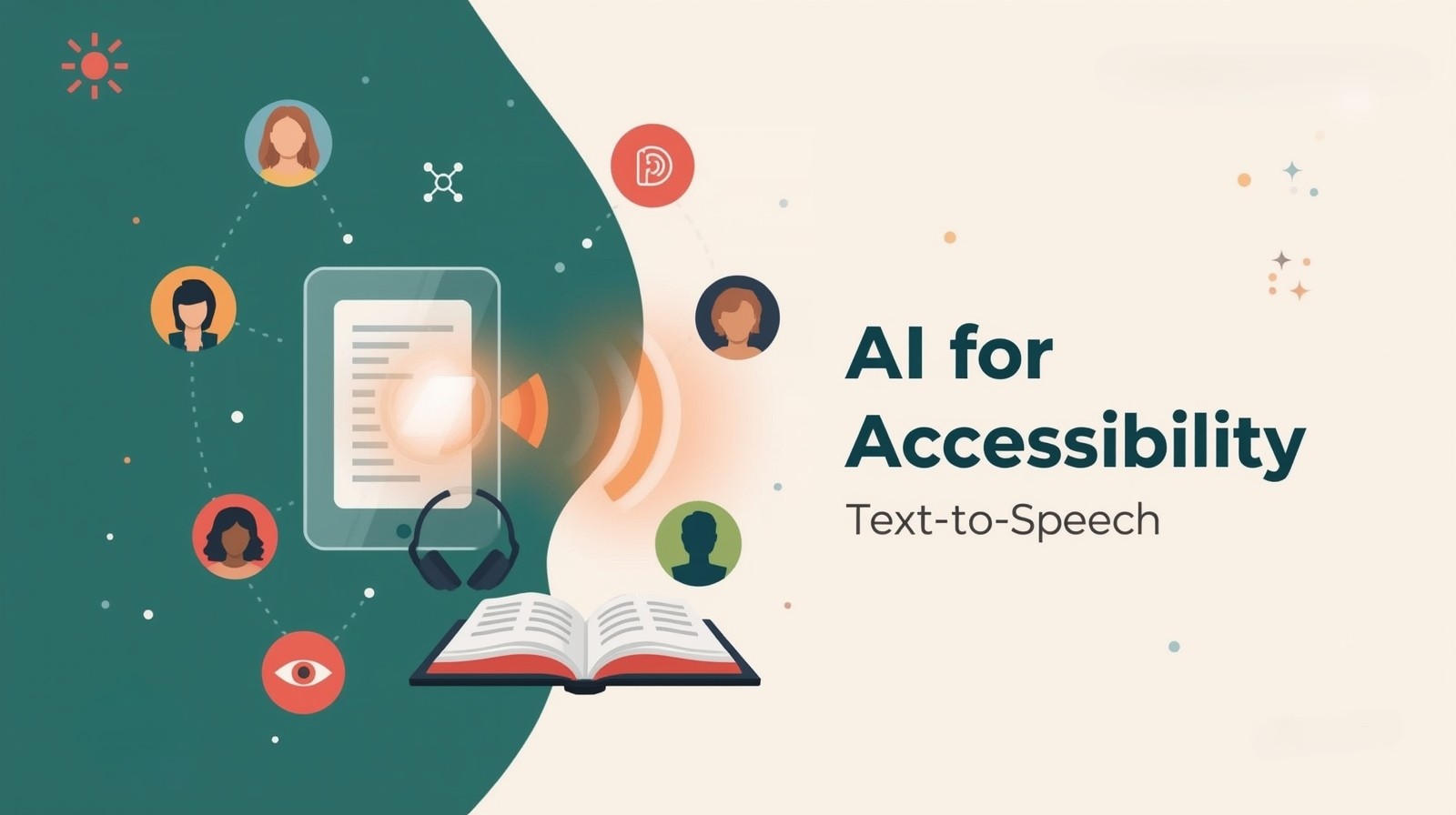
AI for Accessibility is changing how millions of people experience written content. If you’ve ever struggled to read small text, felt exhausted after hours of reading, or know someone with visual impairments, you’ll understand why text-to-speech technology matters. I’ve watched this technology evolve from robotic, monotone voices to natural-sounding assistants that feel almost human. Today, I’m walking you through everything you need to know about using AI-powered text-to-speech tools to transform your reading experience.
What Makes AI Text-to-Speech Different?
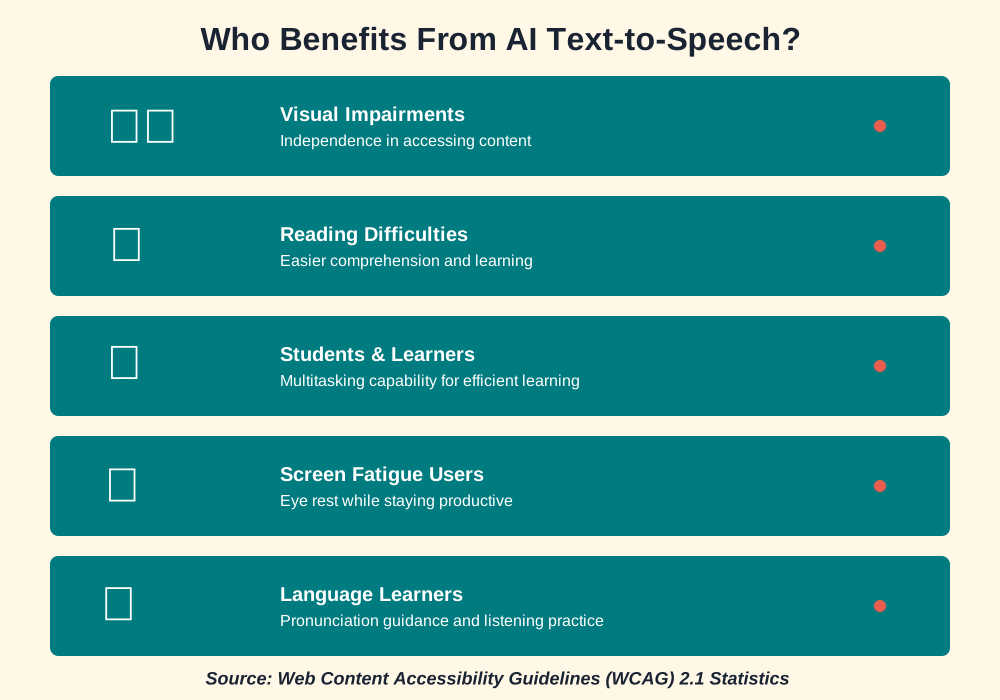
Traditional text-to-speech systems sounded mechanical and lifeless. You probably remember those old GPS voices or early screen readers that made listening exhausting. AI for accessibility has revolutionized the field completely. Modern systems use neural networks (a fancy term for AI that learns patterns like our brains do) to create voices that pause naturally, emphasize important words, and even convey emotion.
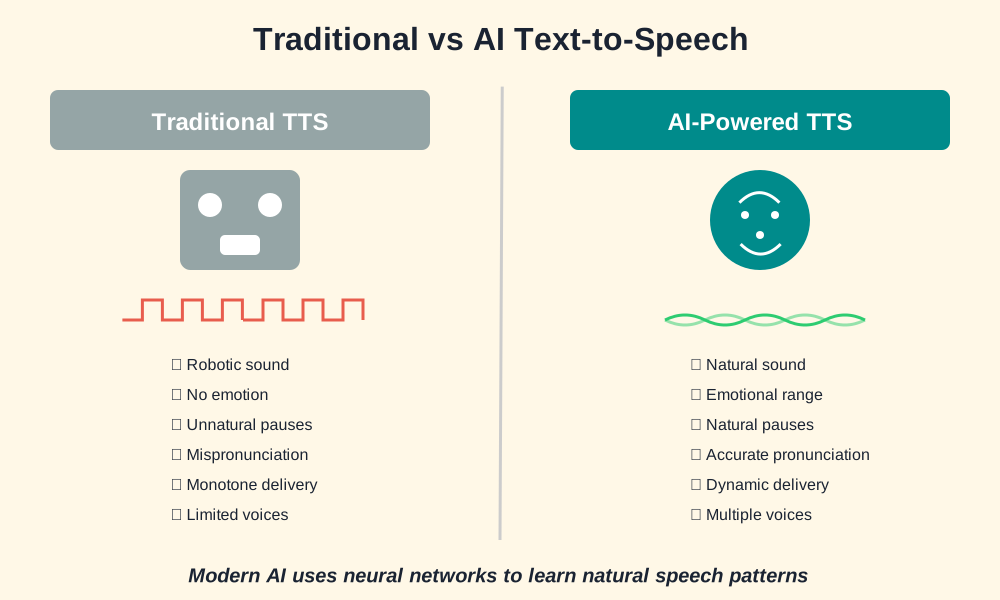
The magic happens through something called deep learning. The AI studies thousands of hours of human speech, learning not just how we pronounce words, but how we breathe, pause, and add subtle inflections. This means when you’re listening to an article or book, it feels like someone’s actually reading to you—not a robot reciting text.
Who Benefits From AI Text-to-Speech?
Before we dive into the how-to, let’s talk about who the technology helps:
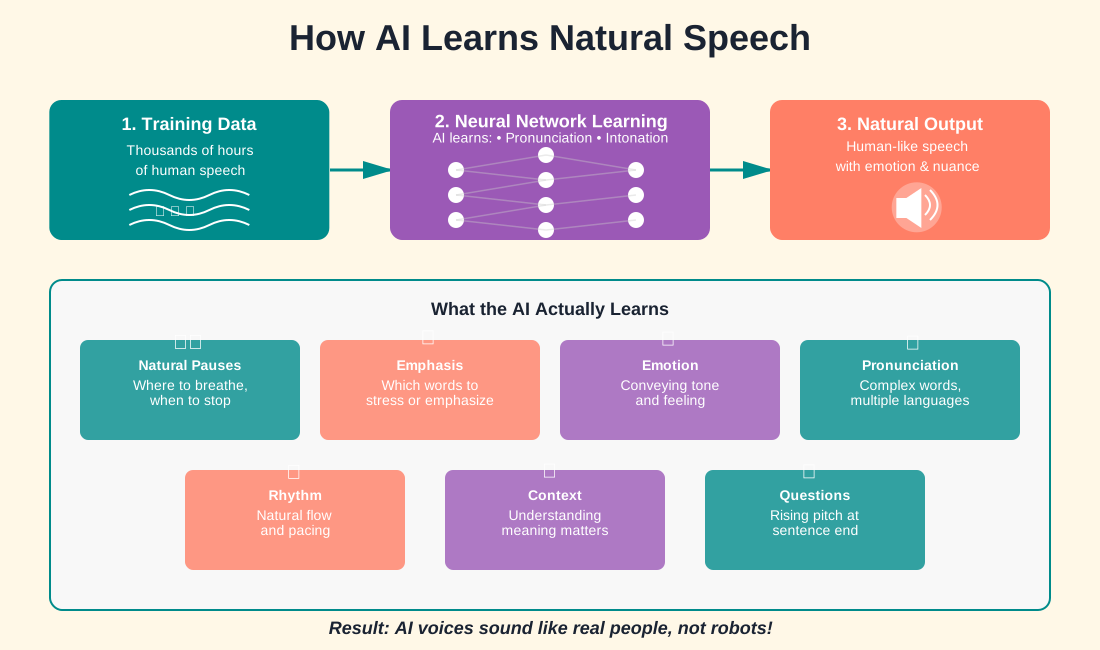
People with visual impairments can access any written content independently. Whether it’s reading emails, browsing websites, or enjoying novels, AI voices provide freedom and autonomy.
Individuals with dyslexia or reading difficulties discover listening easier than decoding text. The AI can slow down, speed up, or emphasize words to match their learning style.
Students and lifelong learners use text-to-speech to absorb information while multitasking—listening to textbooks during commutes or while exercising.
Anyone experiencing eye strain from excessive screen time can rest their eyes while staying productive.
Non-native language learners benefit from hearing correct pronunciation while following along with text.
Step-by-Step Guide: Getting Started With AI Text-to-Speech
Step 1: Choose Your Text-to-Speech Tool
Don’t worry—you don’t need to be tech-savvy. Most AI accessibility tools are designed for everyone. Here are beginner-friendly options:
For smartphones: Both iPhone (iOS) and Android have built-in screen readers. iPhone users have VoiceOver, while Android offers TalkBack. These are free and already on your device.
For web browsing: Extensions like Read Aloud (Chrome), NaturalReader, or Voice Dream Reader work across websites and PDFs.
For documents and books: Tools like Microsoft’s Immersive Reader (free in Word and the Edge browser), Voice Dream Reader, or Speechify handle various file formats.
For dedicated devices: Amazon’s Kindle devices have built-in text-to-speech, though the AI quality varies by model.
Start with whatever you already have. Your smartphone’s built-in features are powerful enough for most needs.
Step 2: Enable Text-to-Speech on Your Device
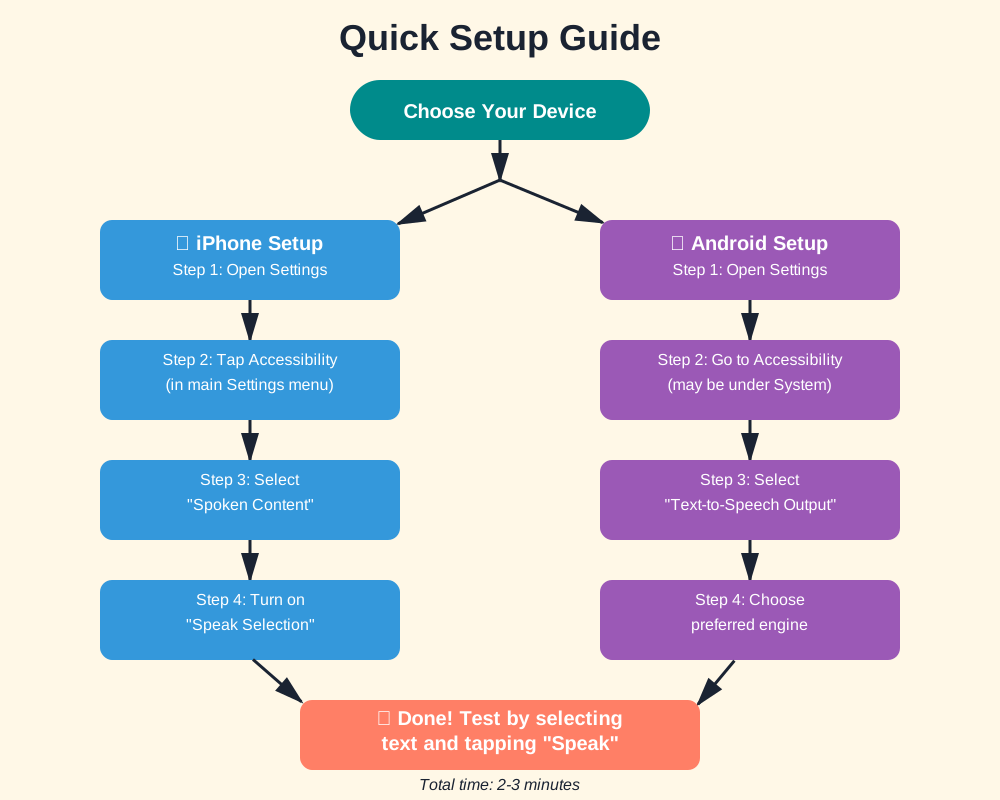
For iPhone users:
- Open Settings
- Tap Accessibility
- Select Spoken Content
- Turn on “Speak Selection” or “Speak Screen”
- Adjust the speaking rate to your preference
For Android users:
- Open Settings
- Go to Accessibility
- Select Text-to-Speech Output
- Choose your preferred engine (Google’s is excellent)
- Adjust speed and pitch
Common mistake to avoid: Don’t skip the voice customization step. The default voice might not suit you. Most systems offer multiple voices—try different ones until you find your favorite.
Step 3: Test With Simple Content
Start small. Open a news article or email and activate the text-to-speech function. On most devices, you’ll select text and tap “Speak” from the popup menu. Listen for a minute or two. Does the voice sound natural? Is the speed comfortable?
This is important: AI voices can be adjusted for speed, pitch, and even accent. Spending five minutes on setup now saves frustration later.
Step 4: Customize Your Experience
Modern AI-powered accessibility tools offer surprising personalization:
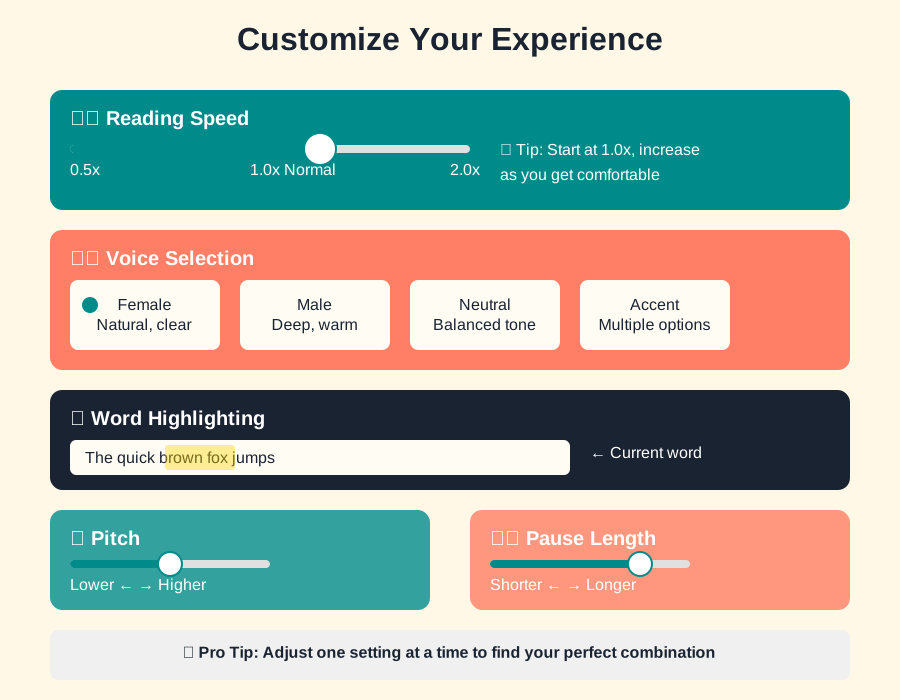
Voice selection: Most systems include multiple voices—male, female, and different accents. Some premium tools offer celebrity voices or professionally recorded options.
Reading speed: Find your sweet spot. Too slow feels tedious; too fast becomes overwhelming. I typically set mine to 1.25x normal speed for articles and slower for complex technical content.
Highlighting: Many tools highlight words as they’re spoken. This reinforces learning and helps you follow along. Enable this in your tool’s settings.
Background sounds: Some apps let you add soft background music or ambient sounds. This helps some people focus better.
Step 5: Practice With Different Content Types
Try the AI voice with various materials:
Short articles: Perfect for learning how your tool handles web formatting and links Long-form content: Books or reports test stamina and navigation features PDFs: These can be tricky—make sure your tool handles them well Emails: Great for daily use and productivity
Each content type has quirks. Web pages might read navigation menus unless you select specific text. PDFs sometimes scramble reading order. Learning these patterns makes you efficient.
Step 6: Master the Controls
Every text-to-speech AI has playback controls. Learn these shortcuts:
Play/Pause: Usually a two-finger double-tap on mobile screens Skip forward/backward: Moves by sentence or paragraph Speed adjustment: Quick access to slow down complex sections Bookmarking: Save your place in longer documents
Beginner tip: Write down your three most-used shortcuts and keep them handy for the first week. They’ll become second nature quickly.
Step 7: Integrate Into Daily Routines
The real power of AI for accessibility comes from daily use:
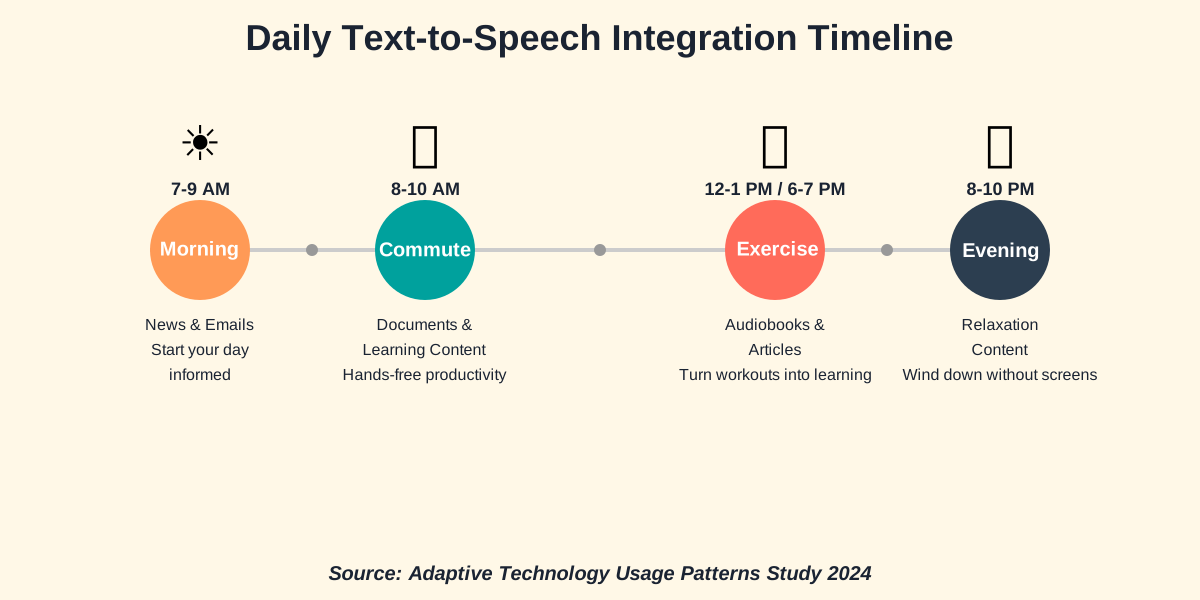
Morning routine: Have your AI read news headlines while you prepare breakfast Commute: Listen to work documents or study materials hands-free Exercise: Turn workout time into learning time Before bed: Many people find listening to content more relaxing than screen reading
Important reminder: Start with 10-15 minutes daily. Your ears need time to adjust to sustained listening, just like your eyes need breaks from screens.
Advanced Tips for Better Experience
Natural Language Processing Features
Modern AI systems include natural language processing, which means they understand context. They’ll pause longer during periods, raise the pitch for questions, and emphasize italicized words. But you can enhance this:
Punctuation matters: Well-punctuated text sounds better. If you’re reading poorly formatted content, the AI might sound choppy.
Language switching: Many tools automatically detect and switch between languages mid-text. Enable this if you read multilingual content.
Technical terms: AI voices sometimes mispronounce specialized vocabulary. Premium tools let you create custom pronunciation dictionaries.
Accessibility Combinations
AI for accessibility works even better combined with other tools:
- Pair text-to-speech with screen magnification if you have partial vision, follow along visually while listening.
- Use high-contrast mode with highlighting features to reduce eye strain.
- Combine with translation tools to learn new languages—read in your target language while hearing correct pronunciation.
Privacy and Offline Options
Important consideration: Some AI text-to-speech tools require an internet connection because they process voice synthesis in the cloud. This means your content gets sent to servers.
For private documents, look for:
- Offline-capable apps that process voice locally
- Privacy-focused tools that don’t store your content
- Built-in device features, which typically keep data local
Always check privacy settings, especially for sensitive information like medical documents or financial statements.
Common Challenges and Solutions
Challenge: The voice sounds too robotic Solution: Try different voices or upgrade to AI-powered options. Free built-in voices have improved dramatically, but premium services like Natural Reader or Speechify offer more human-like options.
Challenge: The AI skips content or reads navigation menus Solution: Select specific text sections instead of using “read entire page” functions. This gives you control over what gets read.
Challenge: Battery drains quickly during listening sessions Solution: Download content for offline reading when possible, reduce screen brightness, or use dedicated e-reader devices designed for lower power consumption.
Challenge: Difficult to focus while listening Solution: Start with familiar content types. Your brain needs practice processing spoken information differently than reading. Try highlighting sync features that show words as they’re spoken.
Challenge: Background noise interferes Solution: Use quality headphones, preferably noise-canceling. Even budget noise-isolation earbuds dramatically improve comprehension in noisy environments.
Frequently Asked Questions
Your Next Steps: Start Today
You now have everything you need to begin using AI for accessibility through text-to-speech technology. Here’s what I recommend:
This week: Enable text-to-speech on your smartphone. Spend 10 minutes testing it with a news article or email. Adjust the voice and speed until it feels comfortable.
This month: Incorporate listening into one daily activity—your commute, morning routine, or exercise time. Notice how it changes your information consumption.
Ongoing: Explore advanced features as you become comfortable. Try different voices, experiment with reading speeds, and discover which content types work best for you.
Remember, there’s no “wrong” way to use this technology. Some people rely on it constantly; others use it selectively. The goal is enhancing your access to information and reducing barriers to reading.
AI text-to-speech isn’t just for people with disabilities—it’s for anyone who wants more flexibility in how they consume content. Whether you’re managing eye strain, boosting productivity, or simply enjoying hands-free reading, these tools are here to help.
The technology will continue to improve. Voices will sound more natural, features will become more intuitive, and accessibility will continue expanding. But you don’t need to wait for perfection. The tools available today are already transformative.
Go ahead—select some text on this very page and try your device’s text-to-speech function. There’s no better way to learn than by doing. You’ve got this!
References:
Web Content Accessibility Guidelines (WCAG) 2.1, W3C Web Accessibility Initiative
Natural Language Processing in Text-to-Speech Systems, IEEE Transactions on Audio, Speech, and Language Processing
Accessibility Technology Usage Patterns, International Journal of Human-Computer Interaction
About the Author
Abir Benali is a friendly technology writer passionate about making AI accessible to everyone. With years of experience explaining complex tech concepts in simple terms, Abir believes that powerful tools like AI-driven text-to-speech should be easy for anyone to understand and use. When not writing about technology, Abir enjoys testing new accessibility tools and advocating for inclusive design in digital spaces. Through clear, jargon-free guides, Abir helps thousands of readers discover how AI can simplify their daily lives and remove barriers to information access.