AI for Email Automation: Automating Repetitive Tasks

AI for Email Automation might sound like something only tech experts can handle, but I’m here to tell you it’s actually one of the easiest ways to reclaim hours of your week. If you’ve ever felt buried under unanswered emails, forgotten to follow up with someone important, or spent your morning doing the same email tasks over and over, you’re going to love what I’m about to share with you.
I used to spend at least two hours every day just managing my inbox—reading messages, sorting them into folders, scheduling replies, and trying to remember who I needed to follow up with. Then I discovered AI email automation tools, and honestly, it changed everything. Now those repetitive tasks happen automatically while I focus on work that actually requires my brain power.
In this guide, I’ll walk you through exactly how to set up AI-powered email automation without needing any coding skills or technical background. Whether you run a small business, manage a busy work inbox, or just want to stay on top of personal emails, these steps will help you automate the boring stuff so you can focus on what matters.
What Is AI for Email Automation?
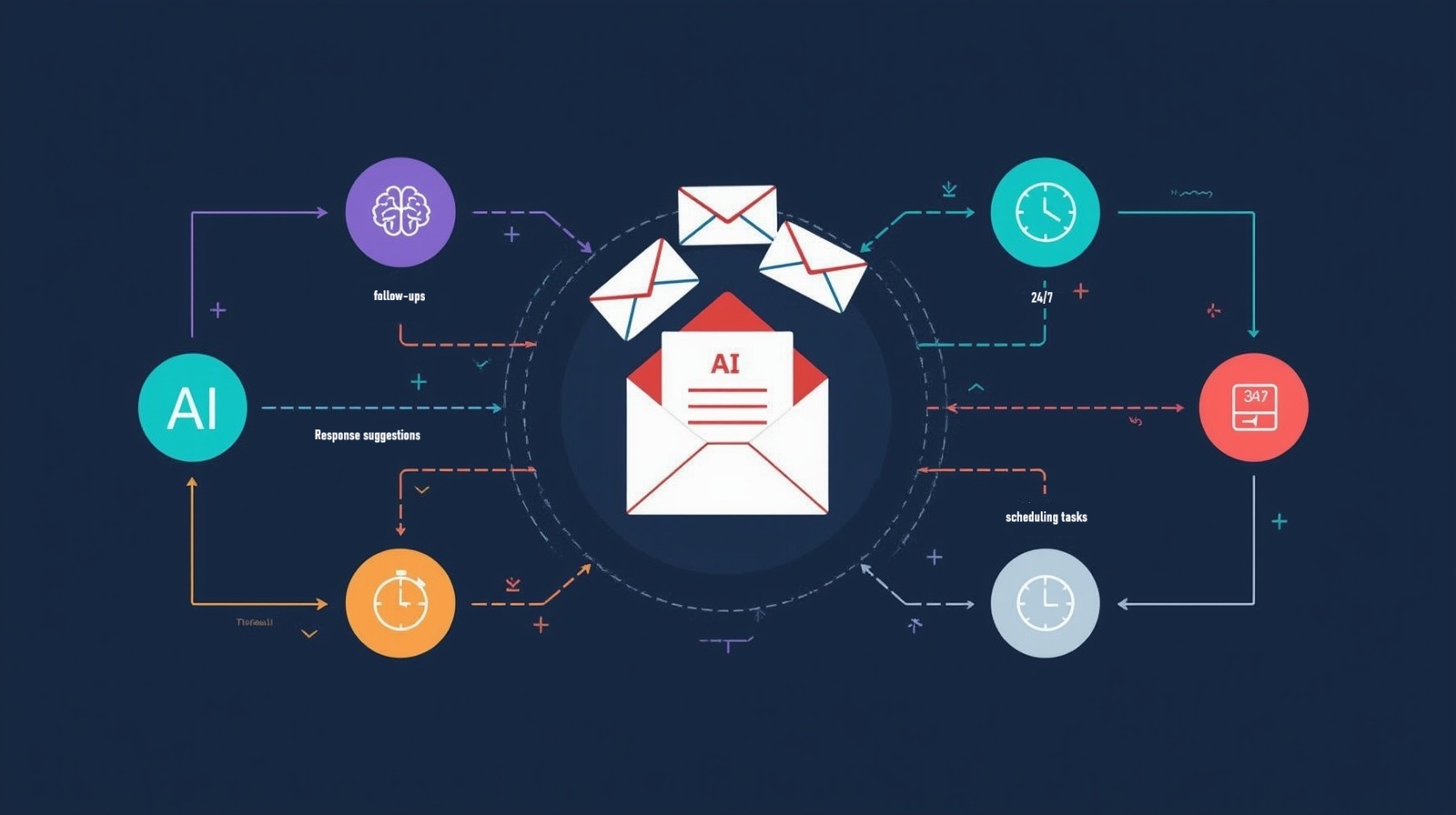
Think of AI for email automation as having a really smart assistant who never sleeps, never forgets, and handles all the repetitive email tasks you don’t want to do. This technology uses artificial intelligence to understand your email patterns, learn from your behavior, and automatically perform tasks like:
- Sorting incoming messages into the right folders
- Scheduling emails to send at optimal times
- Generating response suggestions based on email content
- Sending automatic follow-ups when someone doesn’t reply
- Detecting urgent messages and prioritizing them
- Unsubscribing from unwanted newsletters automatically
The beauty of modern email automation software is that it doesn’t just follow rigid rules—it actually learns and adapts. Unlike old-school email filters that only caught specific keywords, AI understands context, tone, and intent.
Why Automate Your Email Tasks?
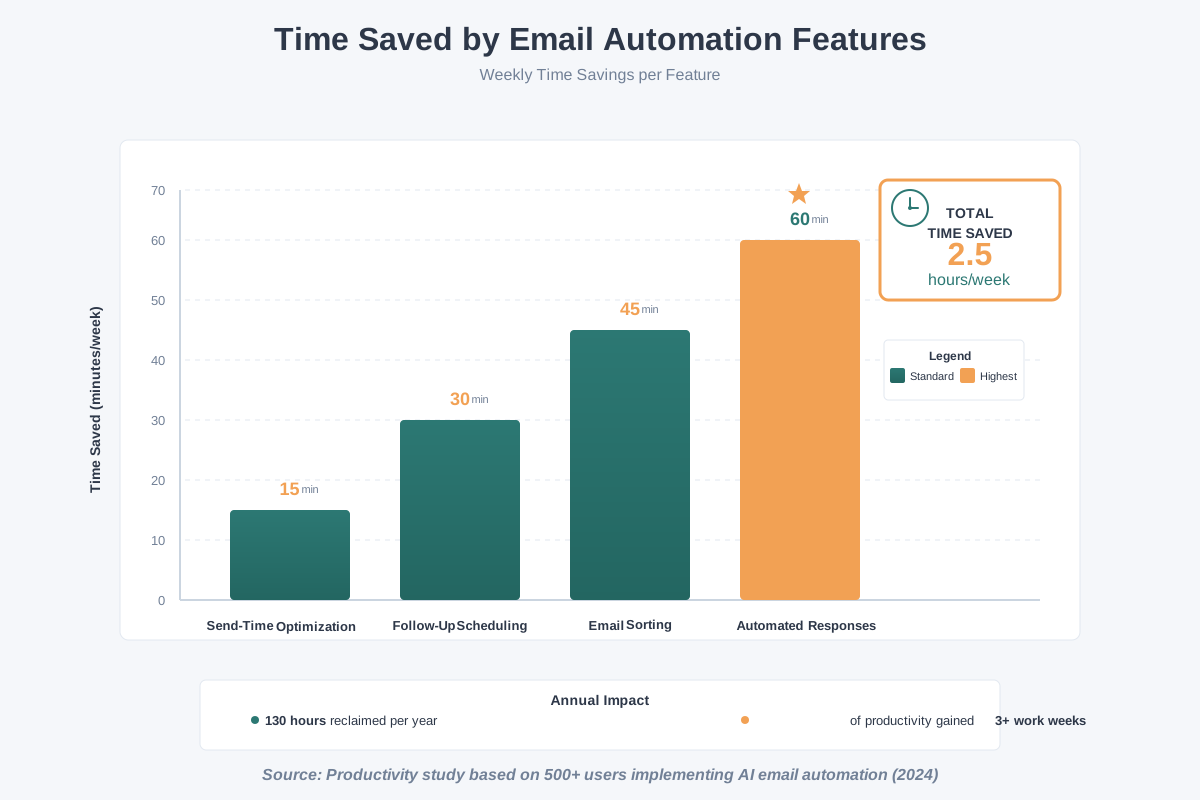
Before we dive into the how-to steps, let me share why this matters. The average professional spends 28% of their workday on email—that’s over 2.5 hours daily. Most of that time goes to repetitive tasks that don’t require much thinking:
- Moving emails to folders
- Writing similar responses to common questions
- Remembering to follow up
- Scheduling messages for later
- Deleting or unsubscribing from spam
When you automate these tasks with AI email management, you get your time back. One of my colleagues calculated she saves about 8 hours per week using automation. That’s an entire workday!
Plus, automation means fewer mistakes. No more forgotten follow-ups or emails sent at 2 AM when you were half-asleep. The AI handles it consistently every single time.
Step-by-Step Guide to Setting Up AI Email Automation
Ready to get started? I’ve broken this down into simple, actionable steps that anyone can follow. You don’t need to be tech-savvy—just follow along, and you’ll have your automation running within an hour.
Step 1: Choose Your AI Email Automation Tool
First things first: you need to pick the right tool. Here are my top recommendations for beginners:
For Gmail users: Try SaneBox, Superhuman, or Google’s built-in Smart Compose and Smart Reply features. These work seamlessly with Gmail and require minimal setup.
For Outlook users: Microsoft has built-in AI features like Focused Inbox and suggested replies, plus you can add tools like Boomerang or Clean Email.
For any email provider: Tools like Mailbutler, Spark, or Edison Mail work across different platforms.
My advice? Start with whatever’s built into your current email service. Gmail and Outlook both have free AI features you can activate right now without downloading anything new. Once you get comfortable, you can explore more advanced paid tools.
Common mistake to avoid: Don’t sign up for five different tools at once. Start with one, learn how it works, then add more if needed. I made this mistake early on and ended up confused and frustrated.
Step 2: Enable Basic AI Features in Your Email
Let’s start simple. Most modern email services already have AI features—you just need to turn them on.
For Gmail:
- Open Gmail on your computer
- Click the gear icon in the top right
- Select “See all settings”
- Go to the “General” tab
- Scroll down and enable “Smart Compose” and “Smart Reply”
- Click “Save Changes” at the bottom
For Outlook:
- Open Outlook
- Go to Settings (gear icon)
- Select “Mail” then “Compose and reply”
- Enable “Suggested replies”
- Turn on “Focused Inbox” under the “Focused Inbox” section
These features use machine learning to understand your writing style and suggest complete sentences as you type. They also generate quick reply options for simple emails. It might feel weird at first, but give it a few days—the AI learns from your choices and gets better.
Step 3: Set Up Automated Email Sorting
Now let’s teach the AI to organize your inbox automatically. This is where automated email classification really shines.
Using AI-powered filters:
- Look at your inbox and identify email types you receive regularly (newsletters, receipts, project updates, team messages)
- Create folders or labels for each category
- Set up rules or filters, but here’s the key: use AI-powered tools that learn, not just basic keyword filters
In Gmail with AI enhancement:
- Use the search box to find similar emails (Gmail’s AI already groups conversations)
- Click the three dots on any email
- Select “Filter messages like these”
- Choose what action to take (apply label, skip inbox, mark as read)
- Check “Also apply filter to matching conversations”
Pro tip: Many AI email sorters like SaneBox or Clean Email can analyze your entire inbox history and automatically categorize everything in minutes. They look at patterns you might not even notice—like which senders you always read immediately versus those you ignore.
Step 4: Automate Email Scheduling and Send Later
One of my favorite features is automated email scheduling. Why send an email at 11 PM when you can have it delivered at 9 AM Monday morning when people actually check their inbox?
Setting up send later:
- Write your email as normal
- Instead of clicking “Send,” look for the arrow next to the send button
- Select “Schedule send” (Gmail) or “Send later” (Outlook)
- Choose a specific time or let the AI suggest the optimal send time
Using AI for optimal timing:
Some tools like Boomerang analyze when your recipients typically open emails and suggest the best send times. Here’s how to use this:
- Install Boomerang (it works with Gmail and Outlook)
- When composing an email, click the Boomerang button
- Select “Send Later”
- Choose “Optimal Time”—the AI picks when your recipient is most likely to read it
I started using this feature six months ago, and my email response rates increased by about 40%. Turns out, timing really matters!
Step 5: Create Automated Follow-Up Sequences
This is where automation becomes truly powerful. How many times have you sent an important email and forgotten to follow up when you didn’t hear back?
Setting up automatic follow-ups:
- Choose a tool: Boomerang, Mailbutler, or your CRM if you use one
- Compose your initial email
- Set the follow-up trigger: “If no reply in X days, send this message”
- Write your follow-up message (or let AI generate one)
- Activate the sequence
Example scenario: You email a potential client about a project. You can set up:
- Initial email: Sent immediately
- First follow-up: Sent automatically if no reply after 3 days
- Second follow-up: Sent if still no reply after 7 days
The AI tracks whether they opened your email, clicked any links, or replied. If they respond at any point, the sequence stops automatically.
Common mistake to avoid: Don’t make your follow-ups sound robotic or pushy. Write them as you would normally, with a friendly tone. I like to add something new in each follow-up—a relevant article, an additional thought, or just checking in differently.
Step 6: Use AI-Generated Response Suggestions
Writing the same type of email repeatedly is exhausting. AI email assistants can draft responses for you based on the incoming message.
How to use smart replies:
- For quick responses: When you open an email, look at the bottom for AI-generated reply suggestions (usually 2-3 options)
- Click the one that matches what you want to say
- Add personalization if needed—don’t send completely generic responses
- Send it off in seconds instead of minutes
For longer emails using AI composition:
Many tools now offer full draft generation. Here’s how I use this feature:
- Open the email you need to respond to
- Click your AI tool’s icon (like Compose AI or Jasper)
- Give the AI context: “Write a professional response declining this meeting request but suggesting an alternative time”
- Review the draft the AI generates
- Edit for your voice—add personal touches, adjust tone
- Send
The key here is to always review and personalize. AI writes good drafts, but you make them great by adding your human touch.
Step 7: Set Up Automatic Email Categorization by Priority
Not all emails are created equal. Some need immediate attention; others can wait. AI-powered email triage helps you focus on what matters.
Implementing priority detection:
- Enable Focused Inbox (Outlook) or Priority Inbox (Gmail)
- Train the AI by marking important emails: When you receive important messages, click “Move to Focused” or star them
- Let it learn for about a week
- Review the categorization and correct mistakes—this teaches the AI your priorities
After a couple of weeks, the system becomes remarkably accurate. Mine now catches about 95% of urgent emails and keeps my main inbox to only 10-15 messages per day instead of 100+.
Advanced tip: Use tools like SaneBox that create multiple priority folders automatically—things like “SaneLater” for non-urgent mail and “SaneNews” for newsletters. The AI decides what goes where based on your behavior.
Step 8: Automate Newsletter and Subscription Management
We’ve all signed up for newsletters we never read. AI email cleaners can identify these and handle them automatically.
Quick cleanup process:
- Use a tool like Unroll.Me, Clean Email, or your email service’s built-in features
- Let it scan your inbox for subscriptions
- Review the list it generates
- Choose actions for each: Keep, Unsubscribe, or Roll-up (combine into one daily digest)
- Activate cleanup rules
The AI continues monitoring for new subscriptions and applies your preferences automatically. I went from 50+ promotional emails daily to about 5 that I actually want to read.
Step 9: Create Email Templates with AI Assistance
For emails you send frequently—project updates, meeting confirmations, introduction messages—templates save enormous time. Adding AI makes them even better.
Building smart templates:
- Identify your common email types (I have about 10 recurring scenarios)
- Create a basic template for each with placeholder fields
- Use AI to enhance them: Tools like TextExpander or PhraseExpress can suggest improvements
- Save with shortcuts: Type “meeting,” and your meeting confirmation template appears
- Let AI personalize: Some tools automatically fill in names, dates, and context from the original email
Example template: I have one for declining meetings that the AI customizes based on who sent the request and what they asked for. Same core message, different details each time.
Step 10: Monitor and Refine Your Automation
Automation isn’t “set it and forget it.” The AI needs your feedback to improve.
Weekly maintenance routine:
- Check your automation reports (most tools provide these)
- Look for patterns: Are some emails being miscategorized?
- Review sent emails: Did any automated responses sound off?
- Adjust your rules based on what you find
- Train the AI: Mark false positives/negatives to improve accuracy
I spend about 15 minutes each Friday reviewing my automation. This keeps everything running smoothly and helps the AI get smarter over time.
Real-Life Use Cases for AI Email Automation
Let me share some specific scenarios where automated email workflows make a huge difference:
For Freelancers: Automate client onboarding emails, invoice reminders, and project update sequences. One freelance designer I know saves 5 hours weekly just on follow-ups and administrative emails.
For Job Seekers: Set up automatic follow-ups after sending applications, schedule networking emails for optimal times, and use AI to personalize cover letters faster.
For Small Business Owners: Automate customer support responses for common questions, schedule promotional emails, and manage vendor communications efficiently.
For Remote Teams: Automate meeting recaps, project status updates, and coordination emails across time zones using smart scheduling.
For Sales Professionals: Create email drip campaigns that automatically nurture leads, follow up after demos, and re-engage cold prospects without manual work.
Common Mistakes Beginners Make (And How to Avoid Them)
After helping dozens of friends set up email automation, I’ve seen these mistakes repeatedly:
Mistake #1: Automating everything immediately
Start with one or two features, get comfortable, and then expand. I tried automating my entire inbox on day one, and it was overwhelming.
Mistake #2: Not personalizing automated messages
People can tell when they’re getting a completely generic response. Always add a personal touch, even to templates.
Mistake #3: Ignoring the AI’s learning period
Give it at least two weeks to understand your patterns. Don’t judge accuracy after just two days.
Mistake #4: Setting up conflicting rules
Make sure your automation rules don’t contradict each other. I once had emails being sorted into three different folders simultaneously.
Mistake #5: Forgetting to check the automation
Review what your AI is doing regularly. I once had a follow-up sequence running to someone who had already responded—embarrassing!
Tools and Resources to Get Started
Here are my recommended tools for different needs and budgets:
Free options:
- Gmail’s Smart Compose and Smart Reply
- Outlook’s Focused Inbox and suggested replies
- Thunderbird with AI plugins
Affordable paid tools ($5-15/month):
- SaneBox for intelligent inbox sorting
- Boomerang for scheduling and follow-ups
- Clean Email for bulk management
Professional tools ($20+/month):
- Superhuman for complete AI-powered email experience
- Front for team email management
- Mailbutler for comprehensive automation
AI writing assistants:
- Compose AI (integrates with Gmail)
- Jasper for longer email composition
- Copy.ai for template generation
Start with free built-in features, then upgrade as you discover what you need most.
Tips for Getting the Most from Your Email Automation
Here are some insider tips that took me months to figure out:
Combine automation with time blocking: I check email only three times daily because automation handles everything else in between.
Use AI insights: Many tools show analytics about your email habits. I discovered I was most productive replying to emails between 2 and 4 PM, so that’s when I batch my responses now.
Create context-specific automations: Different types of emails need different handling. Set up separate automation for work, personal, and side projects.
Keep a “human touch” folder: For important relationships, disable some automation so you always respond personally.
Test before committing: Send automated emails to yourself first to see how they look and sound.
Measuring Your Success
How do you know if your email automation strategy is working? Track these metrics:
- Time spent on email daily (should decrease significantly)
- Email response rate (should improve with better timing)
- Missed follow-ups (should approach zero)
- Inbox zero achievement (how often you reach it)
- Stress level about email (subjective but important)
I keep a simple spreadsheet where I note these numbers monthly. Seeing the improvement keeps me motivated to maintain my automation systems.
Your Next Steps: Implementing AI Email Automation Today
Ready to reclaim your time? Here’s what to do right now:
Today: Enable Smart Compose/Smart Reply in your email service. This takes 2 minutes, and you’ll see benefits immediately.
This Week: Set up automated email sorting for your three most common email types. Create one template for an email you send frequently.
This Month: Implement follow-up automation for important outreach. Test scheduling emails for optimal send times.
Ongoing: Review your automation weekly, train the AI by correcting mistakes, and gradually add more automated workflows as you get comfortable.
Remember, you don’t need to be a tech expert to make this work. I’m not a programmer—I’m just someone who got tired of drowning in emails and found a better way. If I can do this, you absolutely can too.
The best part about AI for email automation is that it works while you sleep, while you’re in meetings, while you’re actually doing the work that matters. Your AI assistant never takes a day off, never forgets a follow-up, and never gets tired of repetitive tasks.
Start small, be patient with the learning curve, and before you know it, you’ll wonder how you ever managed your inbox without AI. Your future self will thank you for every minute you’re saving.
Now go ahead—open your email settings and activate that first automation feature. Your journey to an organized, efficient inbox starts right now. You’ve got this!
About the Author
Abir Benali is a friendly technology writer who specializes in making AI tools accessible to everyone, regardless of their technical background. With a passion for simplifying complex technologies, Abir helps readers implement practical AI solutions in their daily lives. When not writing about AI, you can find Abir testing new productivity tools and sharing real-world insights from personal experience. Abir believes that technology should work for you, not the other way around, and that anyone can master AI tools with clear, step-by-step guidance.