How to Produce Testimonial & Demo Videos Using AI

How to Produce Testimonial & Demo Videos Using AI has become one of the most searched questions among content creators, marketers, and business owners in 2025.
Here’s why: creating professional testimonial and demo videos traditionally required expensive equipment, technical expertise, and hours of editing time.
Now, artificial intelligence tools have completely transformed this process, allowing anyone to produce studio-quality videos from their laptop in minutes, not days.
We’ve spent months testing dozens of AI video tools, and we’re excited to share exactly how you can create compelling testimonial and demo videos that convert viewers into customers—without hiring a video production team or learning complex software. Whether you’re showcasing customer success stories, demonstrating your product features, or creating educational content, this guide will walk you through every step of the process.
Why AI-Powered Video Production Matters for Your Business
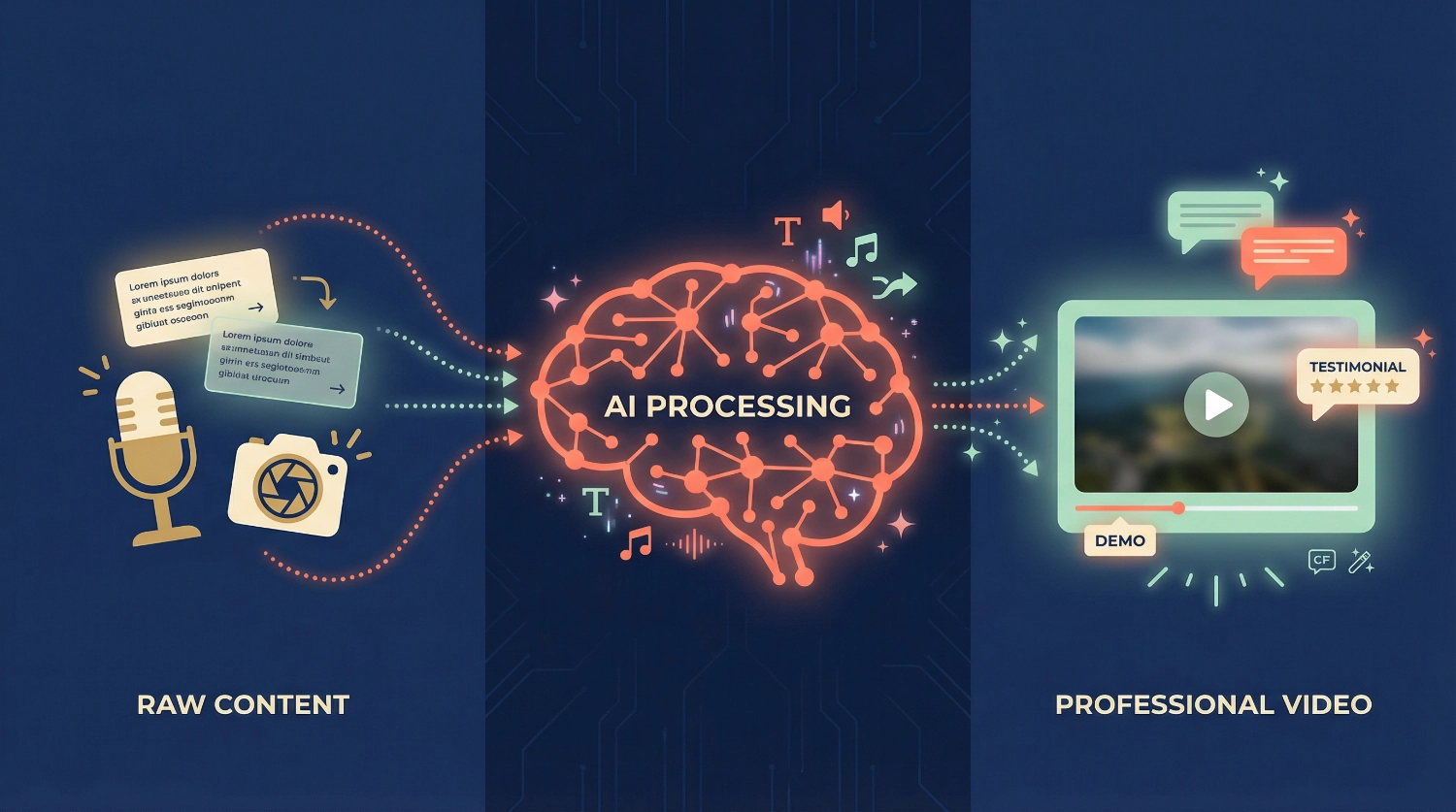
Before we dive into the how-to steps, let’s understand what makes AI video production so revolutionary. Traditional video creation involves scripting, filming, editing, adding effects, and often multiple rounds of revisions. Each stage requires specialized skills and tools. AI video platforms consolidate these steps into a single workflow, using machine learning to automate editing decisions, generate voiceovers, and even create videos from text descriptions.
For testimonial videos specifically, AI tools can transform written customer reviews into engaging video content complete with avatars, background music, and professional transitions. For demo videos, these platforms can screen-record your product interface, add explanatory overlays, and generate clear narration—all without you needing to appear on camera or hire a voiceover artist.
The results? Videos that look professionally produced but take a fraction of the time and budget to create.
Step 1: Choose the Right AI Video Tool for Your Needs
The first decision you’ll make is selecting which AI video creation tool fits your project. We recommend starting with one of these platforms based on your specific use case:
For Text-to-Video Testimonials:
If you have written customer testimonials or reviews that you want to transform into video format, tools like Synthesia or HeyGen excel at this. These platforms use AI avatars that can speak your testimonial text with realistic facial expressions and natural intonation. You simply paste your testimonial copy, select an avatar, and the AI generates a video where that avatar delivers your customer’s words.
For Screen Recording Demos:
When you need to demonstrate software, apps, or digital products, consider tools like Loom AI or Guidde. These platforms record your screen while you navigate through your product, then use AI to automatically add captions, highlight cursor movements, and even generate step-by-step instructions. The AI can also remove filler words from your narration and clean up any mistakes.
For Creative Demo Videos:
If you’re starting from scratch without existing footage, tools like Runway ML or Pictory AI let you create videos from text prompts or scripts. These work brilliantly for product demonstrations where you describe what you want to show, and the AI generates visual sequences to match.
We suggest beginning with a free trial of 2-3 platforms to see which interface feels most intuitive for you. Most tools offer templates specifically designed for testimonials and demos, which gives you a strong starting point.
Step 2: Prepare Your Content Foundation
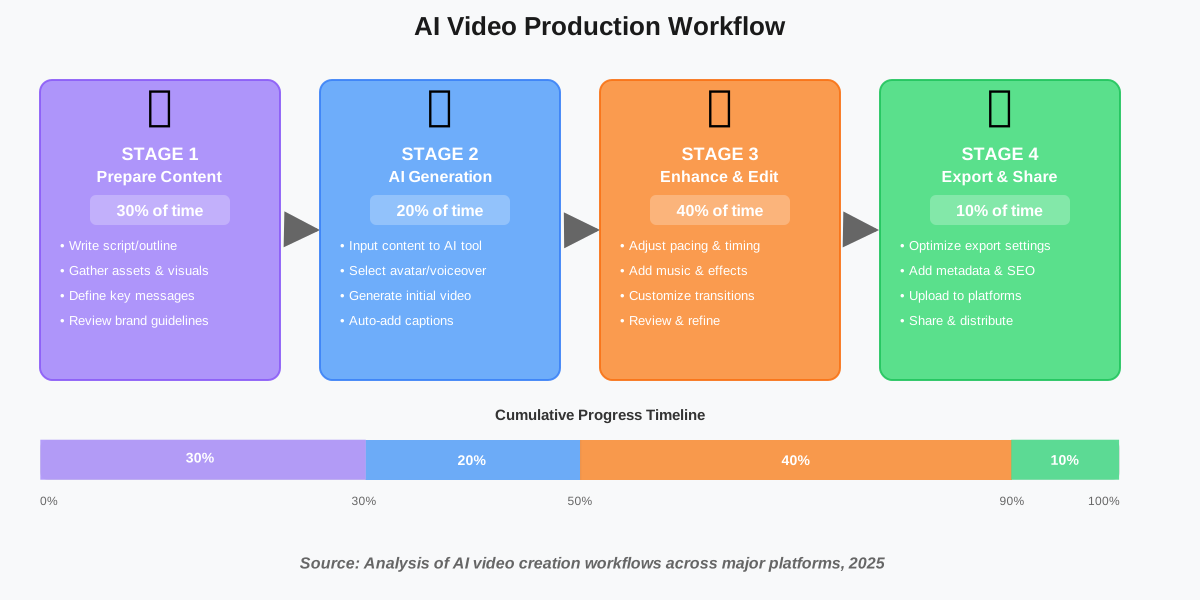
Before opening any AI tool, you need to prepare the raw materials that will become your video. This preparation phase determines the quality of your final output—AI tools are powerful, but they need good inputs to produce great results.
For Testimonial Videos, gather these elements:
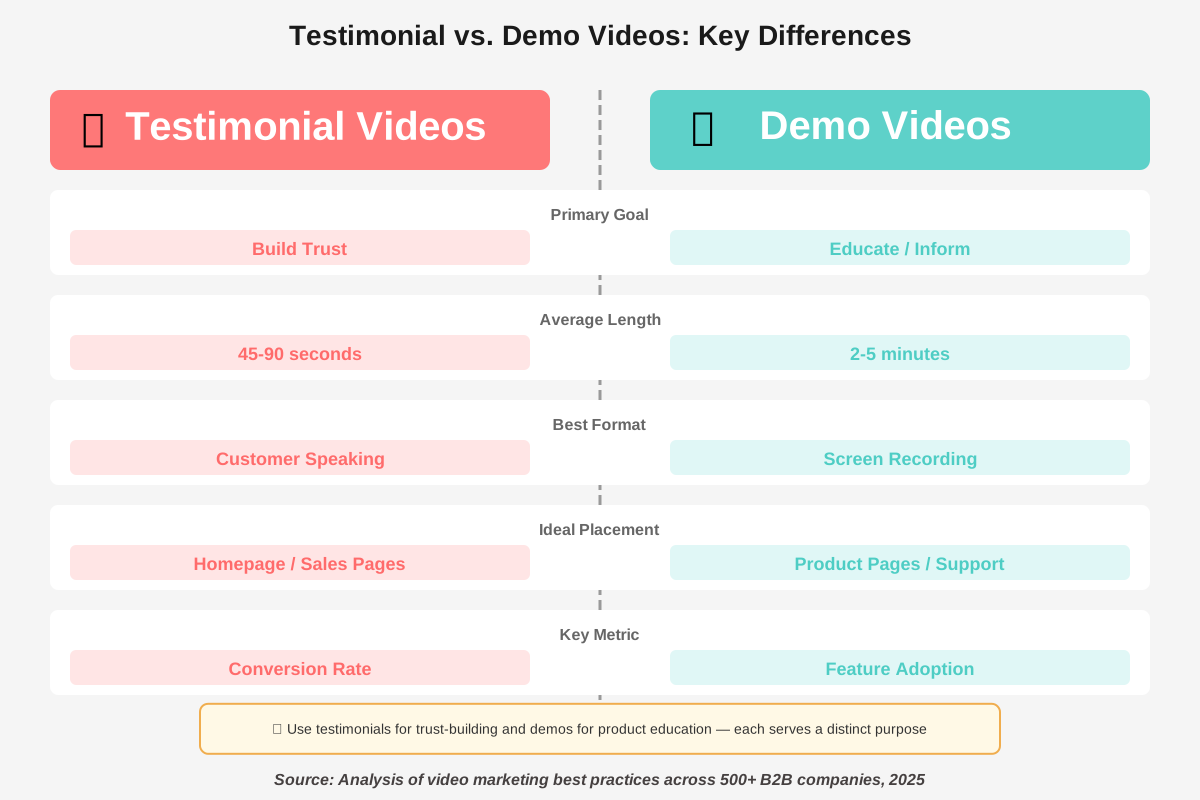
Your customer testimonial text—this could be from an email, review, survey response, or interview transcript. Aim for 100-200 words (about 30-60 seconds of speaking time). Edit the text to remove any unnecessary details and focus on the core message: what problem your customer had, how your solution helped, and what specific results they achieved.
Any supplementary visuals you want to include: photos of the customer (with permission), images of your product in use, or before/after comparisons. While AI can generate background visuals, authentic photos add credibility to testimonials.
Key details you want to appear on screen: the customer’s name, company, role, and any impressive statistics (“increased revenue by 40%”).
For Demo Videos, prepare:
A clear script or outline of what you’ll demonstrate. Break your demo into 5-8 distinct steps or features. For each step, write 2-3 sentences explaining what you’re showing and why it matters to the viewer.
Access to the product or platform you’re demoing. Make sure you can navigate it smoothly without needing to search for features or fumble through menus on camera.
Any graphics or annotations you want to add: arrows pointing to specific buttons, text boxes explaining complex features, or comparison charts showing your product versus alternatives.
Having these materials ready before you start ensures your video creation process flows smoothly without interruptions.
Ready to put this into practice? Download our Long-Form & Educational Video Checklist to ensure you’ve covered all the essential preparation steps before you begin recording. This checklist has helped thousands of creators produce educational and testimonial videos that establish authority and convert viewers.
Step 3: Set Up Your AI Video Project
Now we’re ready to actually create your video. We’ll walk through the process using principles that apply across most AI video platforms, with specific examples where helpful.
Launch Your Chosen Platform and Select a Template
Most AI video tools greet you with a dashboard of templates. For testimonial videos, look for templates labeled “Customer Story,” “Review,” or “Success Story.” These templates are pre-designed with appropriate pacing, text placement, and visual styles for credibility-building content.
For demo videos, search for “Tutorial,” “Product Demo,” or “How-To” templates. These typically include features like screen recording capabilities, annotation tools, and space for step-by-step instructions.
If you’re feeling creative, you can start with a blank canvas, but we recommend using templates when you’re beginning—they handle many design decisions for you and ensure your video looks professional.
Input Your Content
This is where your preparation pays off. Depending on your chosen tool:
For text-to-video platforms: Paste your testimonial or demo script into the text editor. The AI will analyze your content and suggest appropriate pacing and scene breaks. You can typically adjust these suggestions, but the AI’s initial recommendations are usually solid.
For screen recording tools: Start recording and follow your prepared outline. Most modern tools let you pause and resume recording, so you can take breaks between steps without creating awkward gaps in your final video.
For prompt-based video generators: Describe each scene you want in clear, specific language. Instead of “show product working,” write “close-up shot of dashboard displaying analytics graphs, zoom in on the revenue chart showing upward trend.”
Customize Your AI Avatar or Voiceover (For Testimonial Videos)
If you’re using an AI avatar to deliver your testimonial, this is the stage where you select their appearance, voice, and tone. Most platforms offer dozens of avatars with different demographics, ages, and professional contexts.
Here’s a tip we’ve learned through experience: choose an avatar that resembles your target audience rather than trying to match your actual customer’s appearance exactly. If you’re selling to marketing managers, select a professional-looking avatar in business attire. If you’re targeting creative freelancers, a more casual avatar might resonate better.
For the voice, select a tone that matches your testimonial’s emotion. Enthusiastic testimonials benefit from upbeat, energetic voices. More serious, results-focused testimonials work better with calm, authoritative voices.
Step 4: Enhance Your Video with AI-Powered Features
This is where AI video tools really shine—adding polish and professional effects that would take hours to create manually. We’ll explore the features that make the biggest impact.
Automatic Captions and Subtitles
Nearly all AI video editors can generate captions automatically by transcribing your audio. Enable this feature—it’s crucial for accessibility and engagement. Studies show that 85% of social media videos are watched without sound, so captions can dramatically increase your view-through rates.
Most tools let you customize caption styling: font size, color, position, and animation style. For testimonials, we recommend clean, easy-to-read fonts positioned at the bottom third of the screen. For demo videos, consider highlighting key action words or technical terms in a different color to draw attention.
Background Music and Sound Effects
AI platforms typically include royalty-free music libraries with tracks categorized by mood and energy level. For testimonial videos, select uplifting, inspirational tracks that play quietly in the background without overpowering the speaker’s voice. The music should enhance emotion without distracting from the message.
For demo videos, choose subtle, professional background music—think corporate, tech, or ambient styles. Some AI tools can even adjust the music’s volume automatically during speaking sections and increase it during visual-only moments.
Add subtle sound effects to emphasize important moments: a gentle “swoosh” when transitioning between demo steps, a satisfying “click” when highlighting a button, or a celebratory chime when showing successful results.
Visual Enhancements and B-Roll
AI video platforms now offer smart b-roll insertion—the AI analyzes your script or narration and automatically suggests relevant supplementary footage or images. For a testimonial mentioning “increased productivity,” the AI might suggest clips of people working efficiently or graphics showing upward-trending charts.
Review these AI suggestions carefully. Accept the ones that genuinely support your message and remove any that feel generic or mismatched. You can also upload your own b-roll footage or product screenshots for a more authentic feel.
For demo videos specifically, use AI-powered annotation tools to add arrows, circles, zoom effects, and text overlays that guide viewers’ attention to important interface elements. Many tools can track specific on-screen elements automatically, keeping your annotations aligned even if the layout shifts.
Step 5: Fine-Tune Pacing and Transitions
Even with AI automation, you’ll want to manually review your video’s pacing to ensure it feels natural and engaging. This is where your creative judgment matters most.
Adjust Scene Duration
Watch your video draft from start to finish. Note any moments where the pacing feels off—scenes that linger too long or rush past too quickly. Most AI video tools let you adjust individual scene durations by dragging timeline markers.
For testimonial videos, emotional moments should have a slightly longer duration to let the impact sink in. When your customer describes their biggest challenge or celebrates their success, give those sections an extra second or two.
For demo videos, match pacing to complexity. Simple actions like clicking a button might need only 2-3 seconds, while complex processes like setting up integrations might require 8-10 seconds for viewers to fully understand.
Perfect Your Transitions
Transitions between scenes can make or break your video’s professional feel. AI tools typically apply default transitions, but you should customize them based on your content flow.
For testimonial videos, use subtle crossfades or dissolves between segments—these create emotional continuity without drawing attention away from the speaker’s message.
For demo videos, consider using directional wipes or pushes that suggest forward movement through your product’s features. When moving between different sections of your demo (from setup to actual use, for example), a slightly more noticeable transition like a page turn can signal to viewers that you’re shifting topics.
Avoid flashy transitions like star wipes or spinning effects unless you’re deliberately creating a playful, informal tone. Professional videos typically use simple, elegant transitions that viewers barely notice consciously but that create smooth visual flow.
Step 6: Review, Edit, and Polish
We never publish our first draft—and you shouldn’t either. AI tools get you 80-90% of the way to a finished video, but human review catches the details that separate good videos from great ones.
Watch With Fresh Eyes
Export a draft and watch it on a different device than the one you edited on—ideally on the same device your target audience uses. If your viewers primarily watch on mobile, watch your draft on your phone. This helps you spot issues like text that’s too small, pacing that feels different on a smaller screen, or audio balance problems.
Make notes as you watch. Don’t pause to resolve issues immediately; instead, watch the entire video straight through to experience it as your audience will.
Common Issues to Check For
Based on our extensive testing, here are the issues we most commonly need to fix in AI-generated videos:
Audio levels are inconsistent between sections—your voice might be louder than the AI avatar, or background music might overpower narration in certain sections. Use your tool’s audio mixing features to balance these elements.
Text overlays appearing at the wrong times—captions that appear before or after the corresponding audio, or annotation boxes that disappear too quickly for viewers to read. Adjust timing manually.
Generic b-roll that doesn’t match your specific message—AI might suggest relevant but generic stock footage when custom product screenshots would be more convincing. Replace these with your visuals.
Robotic pacing in AI voiceovers—most platforms let you adjust speech speed, add pauses, or emphasize specific words. Fine-tune these settings to make AI voices sound more natural.
Branding inconsistencies—ensure your logo, colors, and fonts appear consistently throughout the video. Most AI tools let you save brand presets, but you’ll need to apply them manually to each element.
Get Feedback From Real Viewers
Before finalizing, share your draft with 2-3 people who represent your target audience. Don’t guide their feedback—just ask them to watch and tell you what they think. Pay special attention to:
- Moments where they seem confused or lose interest
- Sections they found most compelling
- Whether they understood your call-to-action at the end
- Any technical or clarity issues you missed
This feedback often reveals blind spots. What’s obvious to you (because you’ve watched the video 20 times) might be confusing to first-time viewers.
Looking for a comprehensive resource to master all aspects of AI video creation? Grab our 100+ AI Marketing Prompts collection, which includes ready-to-use prompts specifically designed for video scripts, testimonial frameworks, and demo outlines. These are the exact prompts we use—tried, tested, and optimized for results.
Step 7: Optimize and Export Your Video
You’re almost ready to share your video with the world. The final step involves optimizing your export settings and preparing your video for its intended platform.
Choose the Right Export Settings
Different platforms have different optimal specifications. Here’s what we recommend:
For YouTube, Vimeo, or Website Hosting: Export in 1080p (1920×1080 pixels) at 30 frames per second with H.264 encoding. This provides excellent quality without creating excessively large file sizes. Most AI video platforms can handle this automatically if you select “YouTube” or “High Quality” as your export preset.
For Social Media (Instagram, Facebook, LinkedIn): Many AI tools offer platform-specific export presets. These automatically adjust aspect ratio (square or vertical for Instagram Stories, horizontal for LinkedIn), length (Instagram has a 60-second limit for regular posts), and file size to match each platform’s requirements.
For Email Marketing: Export a shorter version (30-45 seconds maximum) in a compressed format. You’ll typically link to a landing page rather than embedding the full video directly, so focus on creating an attention-grabbing preview.
Add Video SEO Elements
Before uploading anywhere, optimize your video’s metadata for searchability:
File name: Use your target keyword in the filename, like “how-to-produce-testimonial-demo-videos-ai.mp4” instead of generic names like “video_final_v3.mp4”
Title: Include your primary keyword naturally, for example: “Customer Success Story | How AI Helped [Company] Increase Sales.”
Description: Write a detailed description (200-300 words) that explains what viewers will learn, includes relevant keywords, and contains timestamps for key sections in longer videos.
Tags: Add 5-10 relevant tags covering your topic, industry, and any tools mentioned.
Thumbnail: Most AI video tools can generate custom thumbnails, or you can export a frame from your video.
Choose an image that shows a person’s face (if appropriate) or your product in action, with clear, readable text overlay highlighting the main benefit.
Step 8: Distribute and Promote Your Video
Creating a fantastic video is only half the battle—now you need to ensure people actually see it. We’ll cover strategic distribution approaches for both testimonial and demo videos.
For Testimonial Videos:
Embed them prominently on your website’s homepage or dedicated testimonials page. Position them above the fold where they’re immediately visible.
Share on your company’s social media accounts, but also ask the featured customer if they’d be willing to share on their profiles. Customer-shared testimonials carry more authenticity and reach their extended networks.
Include them in email nurture sequences, particularly when prospects are in the consideration stage of your funnel. Testimonials can address objections and build trust at exactly the moment buyers need reassurance.
Repurpose clips as social media ads. A 15-second excerpt showing the most impactful moment from your testimonial can be highly effective in paid campaigns.
For Demo Videos:
Feature them on product pages corresponding to the specific features you demonstrated. Don’t hide your demos in a generic resources section—put them where prospects are actively evaluating those features.
Create a YouTube channel for your product demos and organize them into playlists by feature, use case, or user type. This builds a valuable SEO asset over time and makes your content easy to discover.
Gate longer, more comprehensive demos behind an email signup to generate leads. Offer the complete “Advanced Features Masterclass” in exchange for contact information.
Include them in customer onboarding sequences. Your demos aren’t just sales tools—they’re educational resources that help new customers get value from your product faster.
Advanced Techniques: Taking Your AI Videos to the Next Level
Once you’ve mastered the basics, these advanced techniques will help your videos stand out even more.
Personalized Video at Scale
Some AI platforms now offer variable insertion—you can create a single video template where certain elements (like the viewer’s name, company, or specific pain points) dynamically change based on who’s watching. This works brilliantly for sales outreach demos.
For example, you might create a demo video showing how your product solves different problems for different industries. Using AI personalization, a marketing agency sees a version highlighting campaign management features, while a consulting firm sees a version emphasizing client reporting capabilities. Same core demo, tailored messaging.
Multi-Language Versions
Modern AI video platforms can automatically translate your script and regenerate your video with different language voiceovers—often in the same avatar’s voice. This is invaluable if you’re expanding into international markets.
We recommend starting with your primary language version, perfecting it completely, and then generating translated versions. Most platforms handle common European and Asian languages quite well, though you should always have a native speaker review the translation for accuracy and cultural appropriateness.
Interactive Elements
Some advanced AI video tools support clickable hotspots, chapter markers, and embedded forms directly within videos. For demo videos especially, this interactivity can be powerful. Imagine viewers clicking directly on a feature shown in your demo to jump to detailed documentation or submitting questions through a form that appears at relevant moments in your testimonial.
These features are still emerging, but they represent the future of AI-generated video content—moving beyond passive viewing toward genuinely interactive experiences.
Common Mistakes to Avoid (And How We Learned From Them)
Through our testing, we’ve made virtually every mistake possible with AI video creation. Here are the ones that had the biggest impact on our results—and how you can avoid them.
Mistake #1: Overrelying on AI Defaults
AI tools provide excellent suggestions, but they’re optimized for general use cases, not your specific audience. We created an entire series of demo videos using default settings before realizing our B2B enterprise audience found them too casual and fast-paced. After slowing the pacing and choosing more formal music and voices, engagement improved dramatically.
Lesson: Use AI suggestions as a starting point, but customize based on your brand and audience preferences.
Mistake #2: Neglecting the Script
AI can’t fix a weak script. Our early testimonials felt flat because we simply copied customer emails word-for-word, complete with tangents and unclear language. When we started editing testimonials into clear problem-solution-result narratives before feeding them to the AI, the videos became far more compelling.
Lesson: Invest time in script preparation. Edit for clarity, emotion, and structure before any AI processing.
Mistake #3: Choosing the Wrong Video Type
We tried creating testimonials using screen recording tools and demos using AI avatar platforms—basically using the wrong tool for each job. The results were awkward and unconvincing. Now we match video type to tool capability from the start.
Lesson: Testimonials work best with talking heads (AI avatars or real footage). Demos need screen recording or explainer animation styles. Use the right tool for your specific content type.
Mistake #4: Ignoring Mobile Viewing
We edited everything on desktop monitors and were shocked when clients reported that text overlays were illegible on phones. Over 70% of business video views now happen on mobile devices, so mobile optimization isn’t optional.
Lesson: Always preview your video on a mobile device before finalizing. Increase text size, simplify visuals, and ensure audio is clear even through phone speakers.
Mistake #5: Creating Videos Without a Clear CTA
Our early videos simply ended with “Thanks for watching.” We wondered why they didn’t drive action. The fix was simple: we added explicit calls to action in both the final seconds of the video and the video description.
Lesson: Every video should end with a clear next step. For testimonials: “Ready to get similar results? Book a demo.” For tutorials: “Try the system yourself with a free account.”
Measuring Success: Which Metrics Actually Matter
Creating videos is exciting, but you need to know if they’re working. We track these specific metrics for our AI-produced videos:
For Testimonial Videos:
- View-through rate: Percentage of viewers who watch at least 75% of the video. Target: 60% or higher
- Conversion rate: Percentage of video viewers who take your desired action (demo request, trial signup, purchase). Target: varies by industry, but we see 8-15% for well-placed testimonials
- Shares and mentions: How often viewers share your testimonial organically. This behavior indicates strong resonance with your message
- Time on page: Pages with testimonial videos should see increased time on site compared to pages without videos
For Demo Videos:
- Completion rate: What percentage of viewers watch your entire demo? Target: 40% or higher (demos are longer, so lower completion is expected)
- Feature adoption rate: For onboarding demos, track whether customers who watch actually use the featured functionality
- Support ticket reduction: Effective demo videos should reduce questions about the topics they cover
- Play rate: What percentage of page visitors actually start the video? Target: 30% or higher
Most AI video platforms include built-in analytics, but we recommend also using your website analytics platform (Google Analytics, etc.) to track how videos affect overall user behavior and conversions.
Frequently Asked Questions About AI Video Production
Your Next Steps: Start Creating Today
We’ve covered everything you need to know about how to produce testimonial and demo videos using AI—from choosing the right tools to distributing your finished content. The democratization of video production through AI means that compelling, professional video content is no longer reserved for companies with big budgets and production teams.
Our recommendation? Start small. Pick one customer testimonial or one key product feature to demonstrate. Follow the steps we’ve outlined, using a free trial of one of the AI tools mentioned. Give yourself permission to experiment and learn. Your first video won’t be perfect, but it will be done—and that’s infinitely more valuable than a perfect video that never gets created.
Remember, the most important factor isn’t the tool you choose or the technical settings you use. It’s the authenticity of your message and the value you provide to viewers. AI handles the technical complexity; you bring the human insight, creativity, and understanding of what your audience needs to hear.
Want to ensure your first videos succeed? Download our comprehensive Long-Form & Educational Video Checklist and keep it handy as you work through your first projects. It covers every essential step from planning through publication, helping you avoid common pitfalls and create videos that truly convert.
The future of video marketing is accessible, affordable, and powered by AI. You have everything you need to start creating today. What will your first video be about?
About the Authors
Alex Rivera and Abir Benali collaborated to write this article, blending their creative technical expertise with clear, accessible communication.
Alex Rivera (Main Author) is a creative technologist passionate about making AI tools accessible to non-technical creators. With over eight years of experience in digital content creation, Alex specializes in helping individuals and small businesses leverage AI to produce professional-grade content without requiring extensive technical knowledge or large budgets. Alex believes that everyone has stories worth telling and products worth demonstrating—AI simply removes the barriers that previously prevented those stories from being shared.
Abir Benali (Co-Author) is a friendly technology writer dedicated to explaining complex AI tools in simple, actionable language. Abir has helped thousands of beginners navigate their first experiences with AI platforms, always emphasizing practical application over theoretical knowledge. With a background in instructional design, Abir focuses on breaking down complicated processes into clear, numbered steps that anyone can follow successfully.
Together, we bring a balanced approach: Alex’s creative experimentation combined with Abir’s methodical clarity, ensuring that this guide works for beginners while still providing constructive advice for experienced creators looking to add AI video tools to their workflows.